

How to Connect to an FTP Server with Windows Explorer (Step-by-Step Guide)
Connecting to an FTP (File Transfer Protocol) server using Windows Explorer is one of the simplest ways to upload, download, and manage files without installing extra software. This built-in feature of Windows is especially useful for beginners, web developers, and system administrators who want quick access to an FTP server.
In this SEO-friendly guide, you’ll learn what FTP is, why Windows Explorer can be used as an FTP client, and how to connect to an FTP server step by step.
What Is FTP?
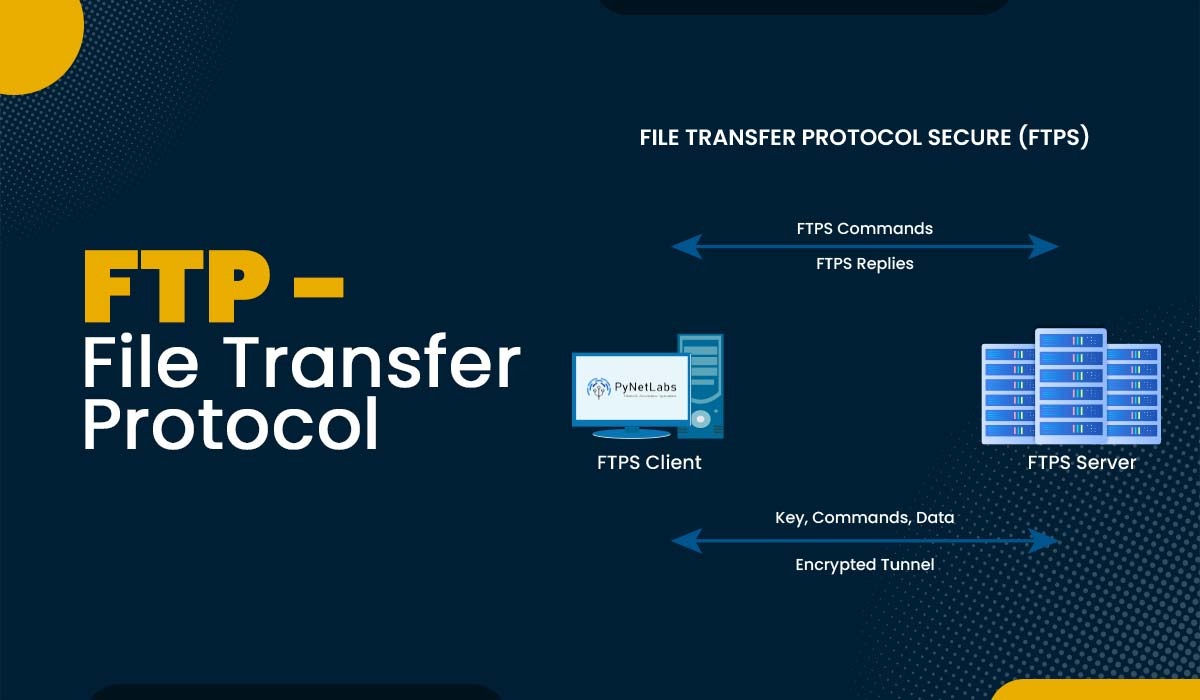
FTP (File Transfer Protocol) is a standard network protocol used to transfer files between a local computer and a remote server over the internet or a private network. It is commonly used for:
Uploading website files to a hosting server
Downloading backups or logs
Managing server directories
Why Use Windows Explorer for FTP?
Using Windows Explorer as an FTP client has several advantages:
✅ No additional software required
✅ Simple drag-and-drop file management
✅ Integrated with Windows file system
✅ Ideal for basic FTP tasks
⚠️ Note: Windows Explorer supports FTP but not SFTP (Secure FTP). For SFTP, use tools like FileZilla or WinSCP.
Requirements Before Connecting
Make sure you have the following details from your hosting provider or server admin:
FTP server address (e.g.,
ftp.example.com)Username
Password
Port number (default is
21)
How to Connect to an FTP Server Using Windows Explorer
Step 1: Open Windows Explorer
Press Windows + E on your keyboard
Or click on This PC / File Explorer from the Start menu
Step 2: Enter the FTP Address
Click on the address bar at the top
Type the FTP address in this format:
ftp://ftp.example.comPress Enter
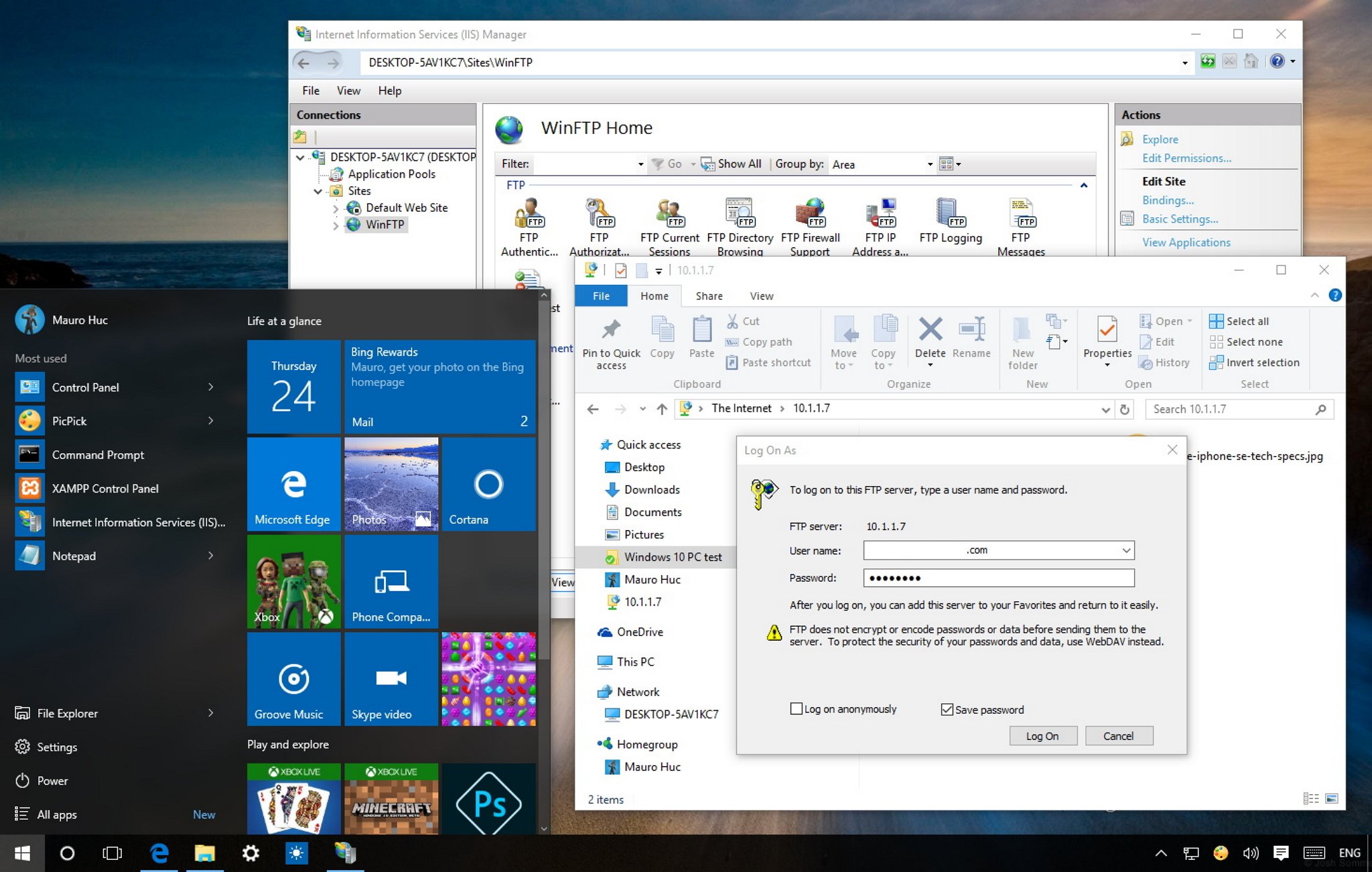
Step 3: Enter FTP Login Credentials
A login window will appear
Enter your FTP username and password
(Optional) Check Save password
Click Log On
Step 4: Access FTP Files and Folders
Once connected, the FTP server will open like a normal folder:
📂 Browse directories
⬆️ Upload files by dragging them into the window
⬇️ Download files by dragging them to your PC
Step 5 (Optional): Save FTP Connection for Future Use
To make future access easier:
Right-click inside This PC
Select Add a network location
Choose Custom network location
Enter the FTP address
Save it with a recognizable name
Now you can access your FTP server anytime with one click.
Common FTP Connection Issues & Fixes
| Issue | Solution |
|---|---|
| Incorrect login | Recheck username and password |
| Connection timeout | Verify server address and internet |
| Access denied | Check folder permissions |
| SFTP not working | Use FileZilla or WinSCP |
Security Tip
FTP transfers data in plain text, including passwords. For sensitive data, always prefer SFTP or FTPS using dedicated FTP client software.
Final Thoughts
Connecting to an FTP server using Windows Explorer is a quick and beginner-friendly method for basic file transfers. While it lacks advanced features, it’s perfect for simple upload and download tasks without installing third-party tools.


Enjoy! Follow us for more...


No comments:
Post a Comment