

How to Connect to an FTP Server Using Client Software (Beginner-Friendly Guide). mp4


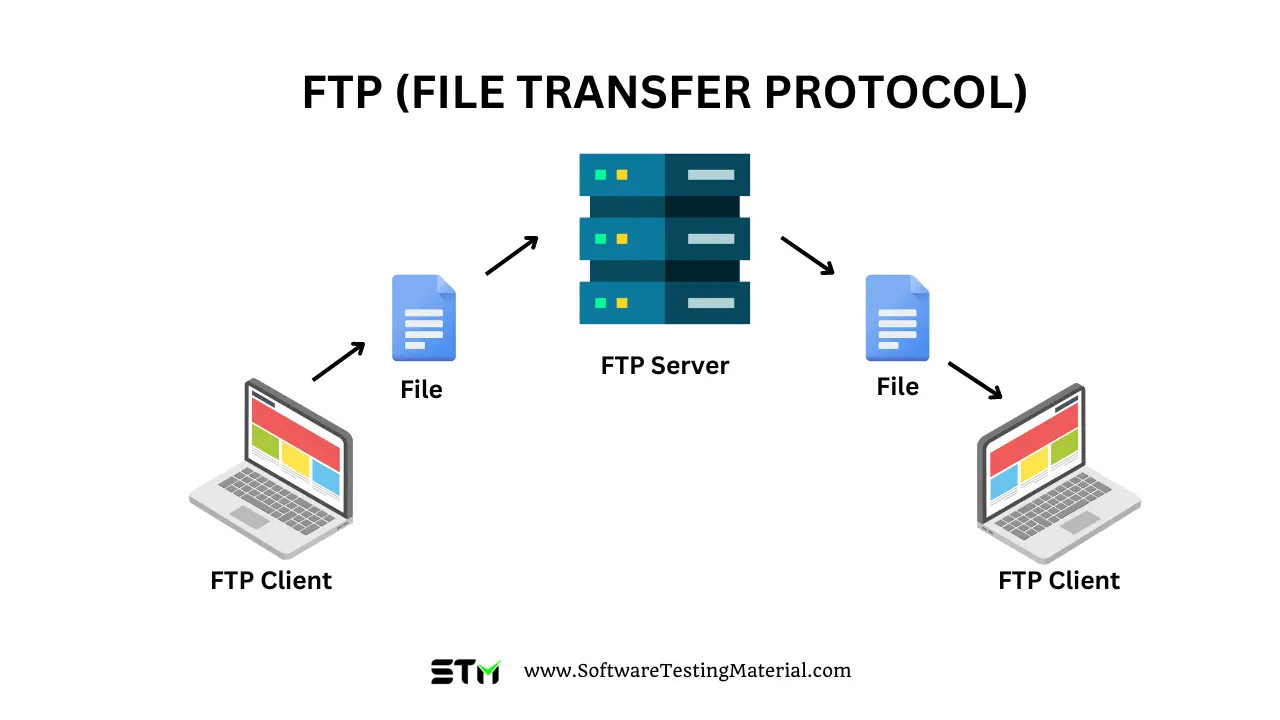

Connecting to an FTP (File Transfer Protocol) server using FTP client software is the most common and reliable way to upload, download, and manage files on a remote server. Below is a simple, step-by-step explanation, using easy technical terms that anyone can understand.
What Is an FTP Client?
An FTP client is a software application that lets you:
Connect to a remote FTP server
Upload files (from your computer → server)
Download files (from server → your computer)
Manage folders and permissions
Popular FTP Clients
FileZilla (Free, Windows / macOS / Linux)
WinSCP (Windows)
Cyberduck (Windows / macOS)
Information You Need Before Connecting
Ask your hosting provider or server admin for these details:
| Field | Description |
|---|---|
| Host / Server | FTP server address (e.g., ftp.example.com) |
| Username | FTP account username |
| Password | FTP account password |
| Port | Usually 21 (FTP) or 22 (SFTP) |
| Protocol | FTP, FTPS, or SFTP |
Step-by-Step: Connect Using an FTP Client (Example: FileZilla)
Step 1: Install FTP Client
Download and install FileZilla Client from its official website.
Step 2: Open the FTP Client
Launch FileZilla. You will see fields at the top for:
Host
Username
Password
Port
Step 3: Enter Server Details
Fill in the fields:
Host: ftp.example.com
Username: your_username
Password: your_password
Port: 21
Click Quickconnect.
Step 4: Successful Connection
Once connected:
Left panel → Your local computer files
Right panel → Files on the FTP server
You can now drag and drop files between them.
Uploading and Downloading Files
Upload Files
Select a file on the left (local) panel
Drag it to the right (server) panel
Download Files
Select a file on the right (server) panel
Drag it to the left (local) panel
FTP vs FTPS vs SFTP (Important Security Tip)
| Protocol | Security | Port |
|---|---|---|
| FTP | ❌ Not encrypted | 21 |
| FTPS | ✅ Encrypted (SSL/TLS) | 21 |
| SFTP | ✅ Encrypted (SSH) | 22 |
👉 Recommended: Use SFTP whenever possible for better security.
Common Connection Errors & Fixes
| Error | Solution |
|---|---|
| Connection timed out | Check host & port |
| Authentication failed | Verify username/password |
| Could not connect | Firewall or wrong protocol |
| Permission denied | Check folder permissions |
Quick Tips for Beginners
Always double-check login details
Use SFTP for secure connections
Don’t delete unknown server files
Keep backups before uploading changes
Final Thoughts
Using FTP client software is the easiest and safest way to manage files on a server. Once connected, file transfers become as simple as dragging and dropping files.
Enjoy! follow us for more...


No comments:
Post a Comment