How to Connect to an FTP Server with Windows Explorer


Download How to Connect to an FTP Server with Windows Explorer.mp4


How to Connect to an FTP Server with Windows Explorer (Step-by-Step Guide)

Connecting to an FTP (File Transfer Protocol) server using Windows Explorer is one of the simplest ways to upload, download, and manage files without installing extra software. This built-in feature of Windows is especially useful for beginners, web developers, and system administrators who want quick access to an FTP server.

In this SEO-friendly guide, you’ll learn what FTP is, why Windows Explorer can be used as an FTP client, and how to connect to an FTP server step by step.


What Is FTP?

FTP (File Transfer Protocol) is a standard network protocol used to transfer files between a local computer and a remote server over the internet or a private network. It is commonly used for:

  • Uploading website files to a hosting server

  • Downloading backups or logs

  • Managing server directories


Why Use Windows Explorer for FTP?

Using Windows Explorer as an FTP client has several advantages:

  • ✅ No additional software required

  • ✅ Simple drag-and-drop file management

  • ✅ Integrated with Windows file system

  • ✅ Ideal for basic FTP tasks

⚠️ Note: Windows Explorer supports FTP but not SFTP (Secure FTP). For SFTP, use tools like FileZilla or WinSCP.


Requirements Before Connecting

Make sure you have the following details from your hosting provider or server admin:

  • FTP server address (e.g., ftp.example.com)

  • Username

  • Password

  • Port number (default is 21)


How to Connect to an FTP Server Using Windows Explorer

Step 1: Open Windows Explorer

  • Press Windows + E on your keyboard

  • Or click on This PC / File Explorer from the Start menu


Step 2: Enter the FTP Address

  1. Click on the address bar at the top

  2. Type the FTP address in this format:

    ftp://ftp.example.com
    
  3. Press Enter


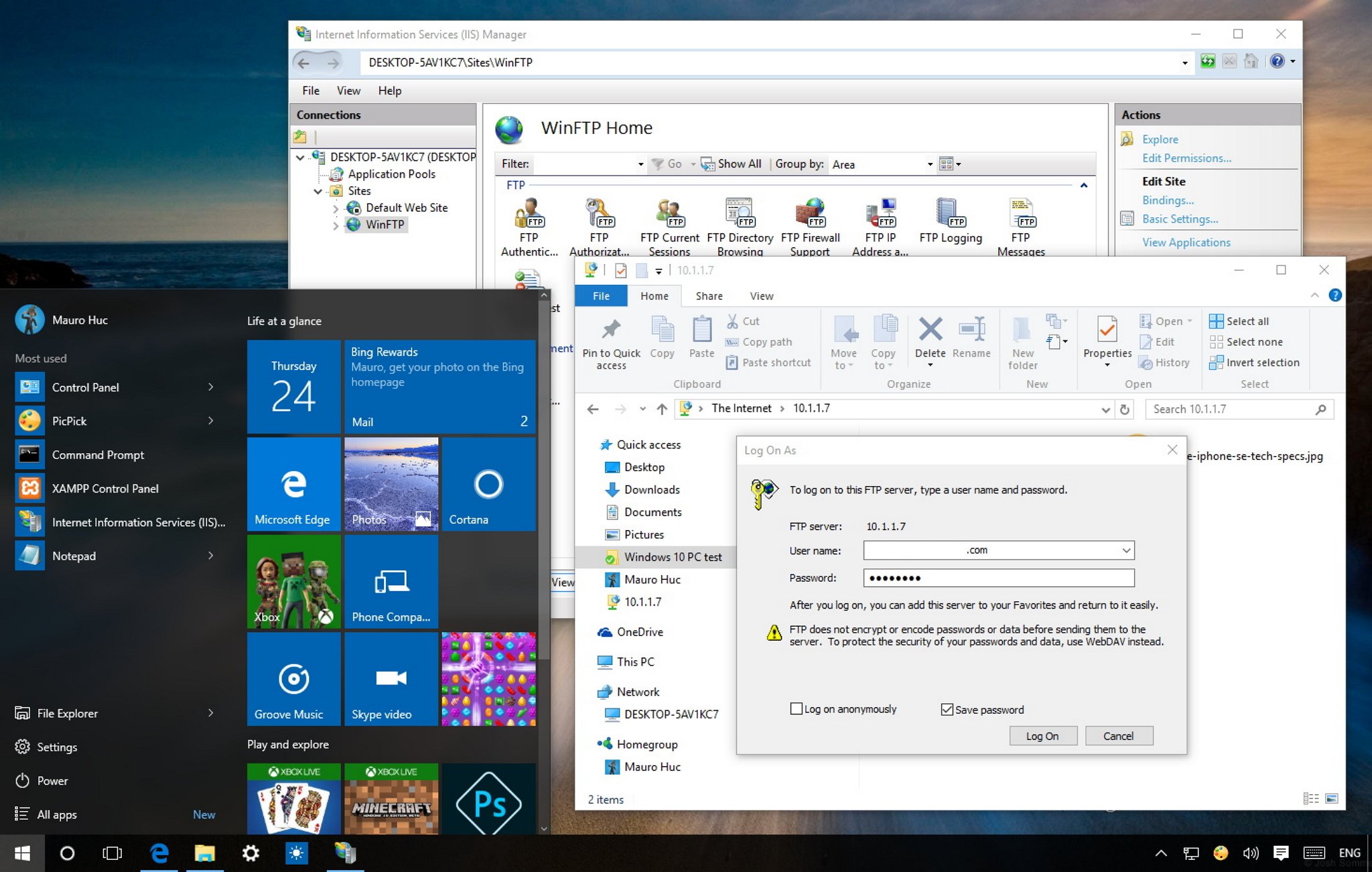
Step 3: Enter FTP Login Credentials

  • A login window will appear

  • Enter your FTP username and password

  • (Optional) Check Save password

  • Click Log On


Step 4: Access FTP Files and Folders

Once connected, the FTP server will open like a normal folder:

  • 📂 Browse directories

  • ⬆️ Upload files by dragging them into the window

  • ⬇️ Download files by dragging them to your PC


Step 5 (Optional): Save FTP Connection for Future Use

To make future access easier:

  1. Right-click inside This PC

  2. Select Add a network location

  3. Choose Custom network location

  4. Enter the FTP address

  5. Save it with a recognizable name

Now you can access your FTP server anytime with one click.


Common FTP Connection Issues & Fixes

IssueSolution
Incorrect loginRecheck username and password
Connection timeoutVerify server address and internet
Access deniedCheck folder permissions
SFTP not workingUse FileZilla or WinSCP

Security Tip

FTP transfers data in plain text, including passwords. For sensitive data, always prefer SFTP or FTPS using dedicated FTP client software.


Final Thoughts

Connecting to an FTP server using Windows Explorer is a quick and beginner-friendly method for basic file transfers. While it lacks advanced features, it’s perfect for simple upload and download tasks without installing third-party tools.


Image

Image

Image

Image

Image


Enjoy! Follow us for more... 

What is FTP (File Transfer Protocol) .mp4


Download What is FTP.mp4

Below is a fully SEO-friendly, long-form article on “What is FTP”, written in clear and simple language while still using correct technical terminology. It’s suitable for blogs, tutorials, and tech websites.


What Is FTP? A Beginner-Friendly Guide to File Transfer Protocol

Introduction

FTP (File Transfer Protocol) is one of the oldest and most widely used methods for transferring files between computers over a network, especially the internet. Even today, FTP plays a vital role in web development, server management, website hosting, and data transfer.

In this article, you’ll learn what FTP is, how it works, why it’s used, and how it differs from modern alternatives, explained in a way that’s easy for beginners to understand.


What Is FTP (File Transfer Protocol)?

FTP (File Transfer Protocol) is a standard network protocol used to upload, download, and manage files between a client computer and a remote server.

In simple words, FTP allows you to:

  • Upload files to a server

  • Download files from a server

  • Rename, delete, or organize server files

FTP works over a TCP/IP network, which means it relies on the same technology that powers the internet.


Why Is FTP Important?

FTP is important because it provides a reliable and efficient way to transfer large files between systems. It is commonly used for:

  • Uploading website files to a hosting server

  • Downloading backups from a server

  • Managing files on cloud or remote servers

  • Sharing data within organizations

For many years, FTP has been the backbone of website file management.


How Does FTP Work?

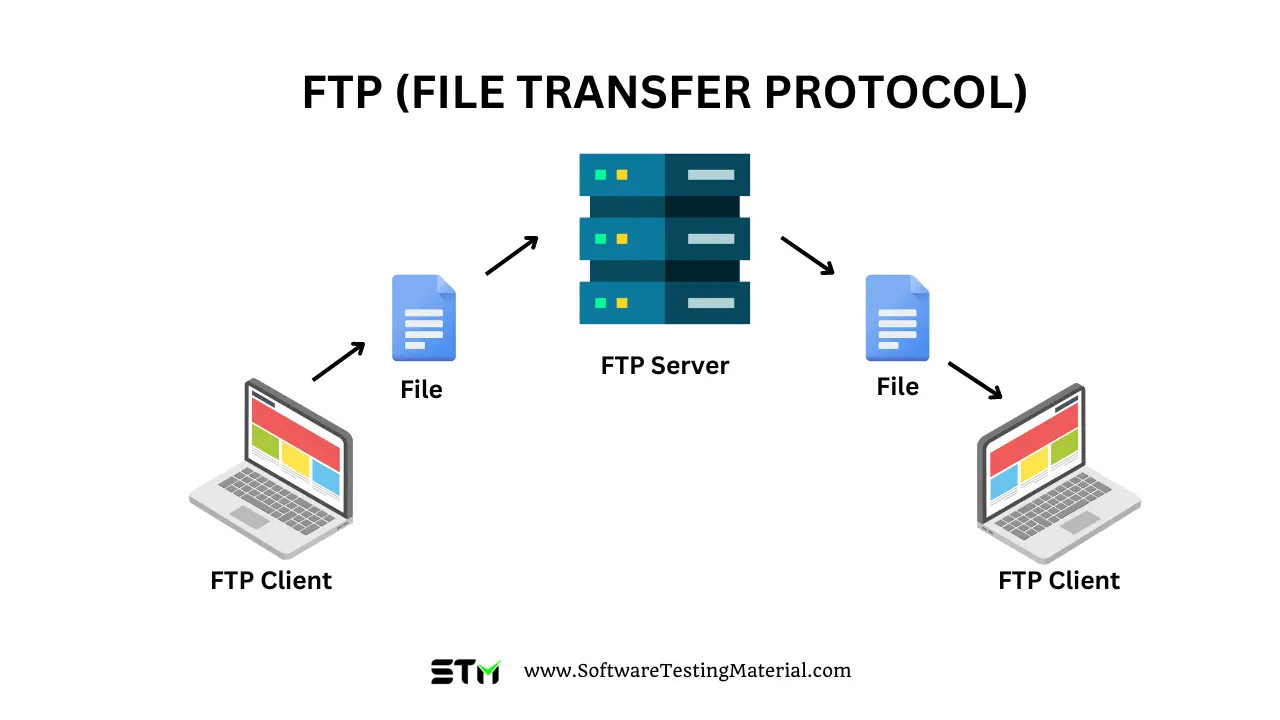
FTP follows a client–server model:

  1. FTP Client – Software installed on your computer (like FileZilla or WinSCP)

  2. FTP Server – A remote machine where files are stored

  3. Authentication – Username and password (or anonymous access)

  4. Connection – Files are transferred through a command and data channel

Basic FTP Workflow

  • The client connects to the FTP server

  • User logs in using credentials

  • Files are uploaded or downloaded

  • Connection is closed


FTP Ports Explained

FTP uses two main ports:

  • Port 21 – Control channel (commands and responses)

  • Port 20 – Data channel (file transfer)

FTP can operate in two modes:

  • Active Mode

  • Passive Mode (more firewall-friendly and commonly used)


Types of FTP Connections

1. Anonymous FTP

  • No username required

  • Public file access

  • Mostly used for software downloads

2. Authenticated FTP

  • Requires username and password

  • Common for website hosting and private servers

3. Secure FTP Variants

Standard FTP is not encrypted, which led to secure alternatives:

ProtocolDescription
FTPSFTP with SSL/TLS encryption
SFTPSSH File Transfer Protocol (different from FTP but more secure)

Advantages of FTP

  • Simple and easy to use

  • Efficient for large file transfers

  • Widely supported across platforms

  • Ideal for website file management


Disadvantages of FTP

  • No encryption in standard FTP

  • Credentials can be intercepted

  • Less secure than modern protocols

  • Requires extra configuration for firewalls

Because of these limitations, FTPS and SFTP are now preferred for secure data transfer.


Common FTP Client Software

Some popular FTP tools include:

  • FileZilla (Windows, macOS, Linux)

  • WinSCP (Windows)

  • Cyberduck

  • Command-line FTP (Linux/macOS)

These tools provide a graphical interface to manage server files easily.


FTP vs SFTP: What’s the Difference?

FeatureFTPSFTP
Encryption❌ No✅ Yes
SecurityLowHigh
Port2122
Recommended Today

Is FTP Still Used Today?

Yes, FTP is still widely used, especially in:

  • Legacy systems

  • Shared hosting environments

  • Educational and internal networks

However, for modern applications, secure protocols like SFTP and FTPS are strongly recommended.


Conclusion

FTP (File Transfer Protocol) is a fundamental technology that enables file transfers between computers over a network. While it has security limitations, it remains an important concept in networking, web hosting, and server management.

Understanding FTP gives you a strong foundation for learning modern file transfer technologies like SFTP and cloud storage systems.


Enjoy! Follow us for more... 

How to Connect to an FTP server using client software.mp4


How to Connect to an FTP Server Using Client Software (Beginner-Friendly Guide). mp4

Image

Image

Image

Image

Connecting to an FTP (File Transfer Protocol) server using FTP client software is the most common and reliable way to upload, download, and manage files on a remote server. Below is a simple, step-by-step explanation, using easy technical terms that anyone can understand.


What Is an FTP Client?

An FTP client is a software application that lets you:

  • Connect to a remote FTP server

  • Upload files (from your computer → server)

  • Download files (from server → your computer)

  • Manage folders and permissions

Popular FTP Clients

  • FileZilla (Free, Windows / macOS / Linux)

  • WinSCP (Windows)

  • Cyberduck (Windows / macOS)


Information You Need Before Connecting

Ask your hosting provider or server admin for these details:

FieldDescription
Host / ServerFTP server address (e.g., ftp.example.com)
UsernameFTP account username
PasswordFTP account password
PortUsually 21 (FTP) or 22 (SFTP)
ProtocolFTP, FTPS, or SFTP

Step-by-Step: Connect Using an FTP Client (Example: FileZilla)

Step 1: Install FTP Client

Download and install FileZilla Client from its official website.


Step 2: Open the FTP Client

Launch FileZilla. You will see fields at the top for:

  • Host

  • Username

  • Password

  • Port


Step 3: Enter Server Details

Fill in the fields:

Host: ftp.example.com
Username: your_username
Password: your_password
Port: 21

Click Quickconnect.


Step 4: Successful Connection

Once connected:

  • Left panel → Your local computer files

  • Right panel → Files on the FTP server

You can now drag and drop files between them.


Uploading and Downloading Files

Upload Files

  • Select a file on the left (local) panel

  • Drag it to the right (server) panel

Download Files

  • Select a file on the right (server) panel

  • Drag it to the left (local) panel


FTP vs FTPS vs SFTP (Important Security Tip)

ProtocolSecurityPort
FTP❌ Not encrypted21
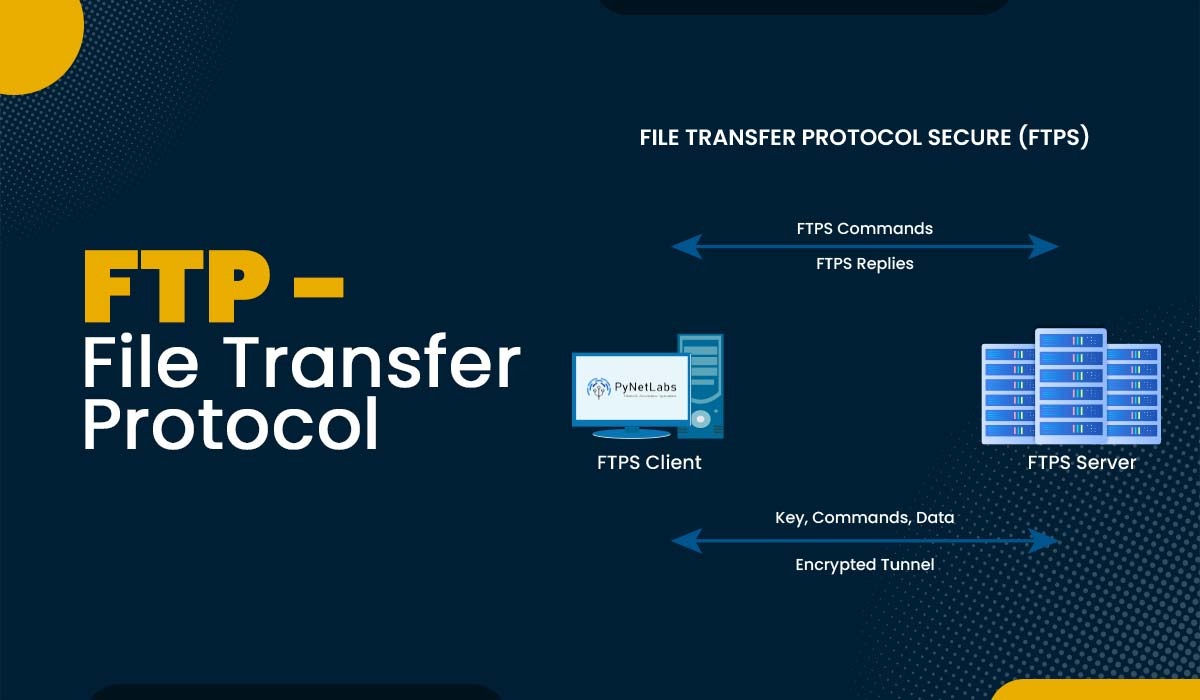
FTPS✅ Encrypted (SSL/TLS)21
SFTP✅ Encrypted (SSH)22

👉 Recommended: Use SFTP whenever possible for better security.


Common Connection Errors & Fixes

ErrorSolution
Connection timed outCheck host & port
Authentication failedVerify username/password
Could not connectFirewall or wrong protocol
Permission deniedCheck folder permissions

Quick Tips for Beginners

  • Always double-check login details

  • Use SFTP for secure connections

  • Don’t delete unknown server files

  • Keep backups before uploading changes


Final Thoughts

Using FTP client software is the easiest and safest way to manage files on a server. Once connected, file transfers become as simple as dragging and dropping files.

Enjoy! follow us for more... 

How to Connect to an FTP server with a web browser.mp4


Download How to Connect to an FTP server with a web browser.mp4

Below is a fully SEO-optimized blog article ready to publish.
It uses clear headings, keyword placement, internal-link friendly structure, and beginner-friendly technical explanations.


How to Connect to an FTP Server with a Web Browser (Step-by-Step Guide)

Connecting to an FTP server using a web browser is one of the easiest ways to access server files without installing extra software. Whether you’re a beginner, blogger, or web developer, this guide explains the process in simple technical terms that anyone can understand.


What Is an FTP Server?

FTP (File Transfer Protocol) is a standard method used to transfer files between a local computer and a remote server over the internet. FTP servers store website files such as:

  • HTML

  • CSS

  • Images

  • Videos

  • Configuration files

FTP is widely used in web hosting, website management, and server maintenance.


Can You Connect to an FTP Server Using a Web Browser?

Yes, you can connect to an FTP server using most modern web browsers. In this case, the browser works as a basic FTP client, allowing you to:

  • Browse server directories

  • Download files

  • View file structures

However, browsers offer limited FTP functionality compared to dedicated FTP software.


Requirements to Access an FTP Server

Before connecting, make sure you have the following details:

  • FTP server address (e.g., ftp.yourdomain.com)

  • Username

  • Password

  • Port number (optional — default is 21)

These credentials are usually provided by your web hosting provider.


How to Connect to an FTP Server Using a Web Browser

Step 1: Open Your Web Browser

You can use browsers like Chrome, Firefox, Edge, or Safari (note that FTP support varies by browser version).


Step 2: Enter the FTP Address

Type the following format into the address bar:

ftp://username:password@ftp.yourdomain.com

Example:

ftp://admin:password123@ftp.example.com

If you don’t include login credentials, the browser will prompt you to enter them manually.


Step 3: Access the FTP Directory

Once authenticated:

  • The FTP server responds to the request

  • A directory listing is displayed

  • You can browse folders and download files

Your browser is now acting as an FTP client.


How FTP Works Behind the Scenes

Technically, here’s what happens:

  1. The browser sends an FTP connection request

  2. The server verifies your credentials

  3. A session is established on port 21

  4. Files and directories are transferred using FTP commands

All data transfer happens in plain text, which affects security.


What You Can Do Using a Browser-Based FTP Connection

✔ View directories
✔ Download files
✔ Open text-based files

❌ Limited or no file uploads
❌ No file permission management
❌ No resume support for large transfers


Limitations of Using a Web Browser for FTP

LimitationDescription
No encryptionFTP sends data in plain text
Reduced browser supportMany browsers are phasing out FTP
Limited file controlNo chmod, sync, or batch uploads
Security risksCredentials can be intercepted

FTP vs FTPS vs SFTP (Important for SEO & Security)

  • FTP – No encryption (not secure)

  • FTPS – FTP with SSL/TLS encryption

  • SFTP – Secure File Transfer Protocol via SSH (recommended)

⚠️ Web browsers do not support SFTP, which requires dedicated software.


When Should You Use a Browser for FTP?

Using a browser is ideal for:

  • Quick file downloads

  • Temporary server access

  • Learning FTP basics

Not recommended for:

  • Uploading sensitive data

  • Managing live websites

  • Large or frequent file transfers


Best FTP Client Alternatives (Recommended)

For professional and secure access, use:

  • FileZilla

  • WinSCP

  • Cyberduck

These tools support secure protocols, encryption, and advanced file management.


Conclusion

Connecting to an FTP server using a web browser is:

  • Simple

  • Fast

  • No installation required

But due to security and functionality limitations, it’s best used only for basic access. For regular or sensitive tasks, always use a dedicated FTP client.


Frequently Asked Questions (FAQ)

Is FTP safe to use in a browser?

No. Standard FTP is unencrypted and not safe for sensitive data.

Why do some browsers no longer support FTP?

Due to security concerns and declining usage, many browsers are removing FTP support.

What is the best alternative to browser-based FTP?

Using SFTP with FileZilla or WinSCP is the safest and most reliable option.


Enjoy! Follow us for more... 

Greedy expressions in Regex.mp4


Download Greedy expressions in Regex.mp4


Greedy Expressions in Regular Expressions (Regex)

Greedy expressions are the default behavior in most regex engines.
They try to match as much text as possible while still allowing the overall pattern to succeed.


What does “greedy” mean?

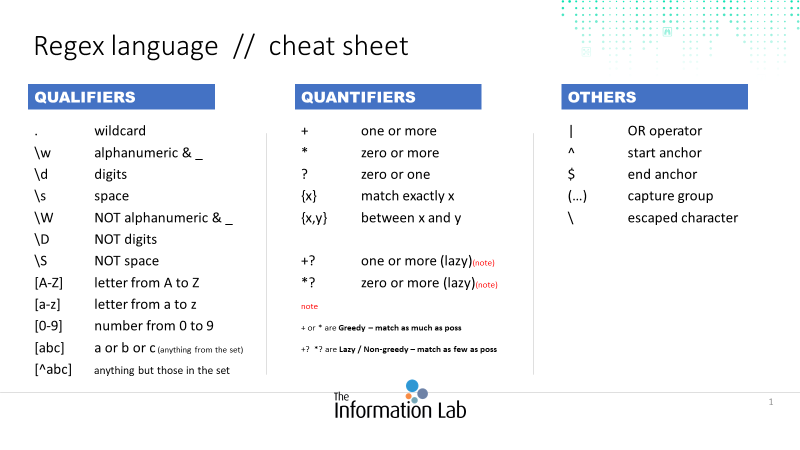
When a regex uses a quantifier like:

  • * → 0 or more times

  • + → 1 or more times

  • ? → 0 or 1 time

  • {m,n} → between m and n times

…the regex engine will expand the match to the maximum length it can.


Simple Example

Text

aaaa

Regex

a+

Match

aaaa

👉 The + quantifier is greedy, so it matches all four a characters instead of stopping early.


Greedy vs Expected Result

Text

"<title>Regex</title>"

Regex

<.*>

Matched result

<title>Regex</title>

Why?

  • .* means “any character, zero or more times”

  • Being greedy, it stretches from the first < to the last >


Another Clear Example

Text

abc123xyz456

Regex

.*\d+

Match

abc123xyz456

.* first consumes everything
✔ Then it backtracks just enough to allow \d+ to match the final digits


Common Greedy Quantifiers

QuantifierMeaningGreedy Behavior
*0 or moreMatches as much as possible
+1 or moreMatches the longest sequence
?0 or 1Prefers 1 if possible
{m,n}RangeMatches up to n times

Visual Understanding

Image

Image

Image


Why Greedy Matching Matters

Greedy expressions can:

  • Accidentally match too much

  • Cause unexpected results when parsing HTML, XML, or logs

  • Require careful pattern design

Example issue

<.*>

❌ Too broad
✔ Often needs constraints or lazy quantifiers (like .*?)


Quick Tip

If your regex matches more than you expect,
it’s probably because a greedy quantifier is consuming too much.


Summary

  • Greedy expressions are default in regex

  • They always match the longest possible string

  • Quantifiers like *, +, ?, {m,n} are greedy by nature

  • Understanding greedy behavior helps avoid over-matching bugs

Backreferences to Optional Expressions in Regex.mp4


Download Backreferences to Optional Expressions in Regex.mp4


Here’s a simple and easy explanation of Backreferences to Optional Expressions in Regex, with clear examples.


⭐ Backreferences to Optional Expressions (Explained Simply)

A backreference in regex lets you reuse a previously matched group.
Example: \1 means “match exactly what Group 1 matched.”

But what happens when the group you're referencing is optional?

Example of optional group: (abc)?
The ? means → “this group may appear once or not appear at all.”

So a backreference to an optional group means:

  • If the optional group matched something,
    then \1 must match the same text again.

  • If the optional group did NOT match,
    then \1 tries to match… nothing (empty string).

This behavior often confuses beginners.


✔ Example 1 — Optional group appears

Regex:

(abc)?\1

Case 1: string = "abcabc"

  • (abc)? → matches "abc"

  • \1 → must match "abc"

  • ✔ The regex matches.

Case 2: string = "" (empty string)

  • (abc)? → matches nothing

  • \1 → also matches nothing

  • ✔ The regex matches an empty string!

Case 3: string = "abc"

  • (abc)? → matches "abc"

  • \1 → must match "abc"

  • ❌ second "abc" missing → fails


✔ Example 2 — A practical real-world scenario

Match double-quoted strings that might start with a prefix:

Regex:

(prefix:)?".*"\1

Meaning:

  • Optional prefix like: prefix:"value"

  • If prefix exists, the same prefix must repeat at the end

  • If prefix not present, no repeat required

Works for:

prefix:"hello"prefix:
"test"


⚠ Why Backreferences to Optional Groups Are Tricky

Because:

  • If the group is not matched, the backreference evaluates to empty string.

  • This can lead to unexpected matches you didn't intend.

Example:

(a)?b\1

Matches:

  • "aba" → group captured "a" then repeats "a"

  • "b" → group empty, so \1 empty → matches!

This surprises many developers because "b" looks like it shouldn't match.


⭐ Safe Trick: Use “non-empty only” logic

To force a backreference to work only when the optional group actually matched:

Use a conditional (supported in PCRE, .NET, Python regex library):

(a)?b(?(1)a)

Meaning:

  • If group 1 matched → require a

  • If not → require nothing

Now "b" does NOT match, "aba" does match.


🔥 Summary (Very Simple)

Optional Group Backreference Outcome
Group matched text Backreference must match same text Works
Group did not match Backreference matches empty string Works (maybe unexpectedly)


Enjoy! Follow us for more... 

How to Match decimal numbers and currency in Regex.mp4


Download How to Match decimal numbers and currency in Regex.mp4


Here’s a simple and easy explanation of how to match decimal numbers and currency values using Regex, along with clear examples.


✔️ Matching Decimal Numbers & Currency in Regex

Image

Image


🟦 1. Matching Decimal Numbers

Decimal numbers are numbers that may have a decimal point.

Examples:

12
12.5
0.99
.75
150.00

✅ Basic Regex for Decimal Numbers

\d+(\.\d+)?

✔️ Explanation

  • \d+ → one or more digits

  • (.\d+)? → optional decimal part

    • \. → the dot

    • \d+ → digits after the dot

    • ? → the whole decimal part is optional

✔️ Matches

  • 12

  • 12.5

  • 150.00

❌ Does NOT match

  • .75 (because it requires digits before the dot)


🟦 2. Matching Decimals With Optional Leading Zero

If you want to allow numbers like .75, use this:

✅ Regex

\d*(\.\d+)?

✔️ Matches

  • .75

  • 0.75

  • 12.9

  • 12


🟦 3. Allowing Either Integer or Decimal, but Not Empty

This is often used in real applications.
You want either:

  • digits only → 45

  • digits + decimals → 45.90

  • dot + decimals → .90

✅ Better Regex

\d+(\.\d+)?|\.\d+

🟦 4. Matching Currency Values (₹, $, €, etc.)

Currency usually has:

  • Symbol → $, , , £

  • Decimal part with exactly 2 digits → .00, .50, .99

  • Optional commas → 1,000.50

Examples:

$10.99
₹1,200.00
€0.50
£99

✔️ 4.1 Currency With Symbol & Optional Decimal

✅ Regex

[$₹€£]\d+(\.\d{2})?

✔️ Explanation

  • [$₹€£] → matches one symbol

  • \d+ → the number

  • (\.\d{2})? → optional .00 decimal part with 2 digits

✔️ Matches

  • $10

  • $10.99

  • ₹50.00

  • €9.50


✔️ 4.2 Currency With Commas (1,000.00)

✅ Regex

[$₹€£]\d{1,3}(,\d{3})*(\.\d{2})?

✔️ Explanation

  • \d{1,3} → first group (1–3 digits)

  • (,\d{3})* → optional groups of ,000

  • (.\d{2})? → optional decimal part

✔️ Matches

  • $1,000.00

  • ₹25,50,000.99 (Indian numbering also works depending on format)

  • €999.50


🟩 5. Currency Without Symbol (just numbers like 10.99)

If you want to match only valid currency decimals, exactly 2 digits:

✅ Regex

\d+(\.\d{2})?

✔️ Matches:

  • 10

  • 10.99

❌ Does NOT match:

  • 10.9

  • 10.999


🟩 6. Complete Universal Regex

Match currency numbers with optional:

  • symbol

  • commas

  • decimals

✅ Universal Regex

([$₹€£])?\d{1,3}(,\d{3})*(\.\d{2})?

🎉 Summary (Super Simple)

Purpose Regex
Basic decimal \d+(\.\d+)?
Allow .75 \d*(\.\d+)?
Currency with symbol [$₹€£]\d+(\.\d{2})?
Currency with commas [$₹€£]\d{1,3}(,\d{3})*(\.\d{2})?
Strict 2-decimal currency \d+(\.\d{2})?

Enjoy! Follow us for more... 

Explaination about Shorthand character sets.mp4


Download Explanation about Regex shortnand character sets.mp4

 Here’s a simple and clear explanation of the most common Regex shorthand character sets, with easy examples to help you understand how they work.


Regex Shorthand Character Sets (Explained Simply)

Regular expressions (regex) use shorthand character sets to make pattern-matching easier.
Instead of writing long character ranges, you can use short symbols like \d, \w, \s, etc.

Below is a friendly explanation of each.


🔹 1. \d → Digit characters

Meaning: Matches any number from 0–9

Examples:

  • Regex: \d
    Matches: 3 in "A3Z"

  • Regex: \d\d
    Matches: "45" in "Age: 45"


🔹 2. \D → Non-digit characters

Meaning: Matches anything except 0–9

Examples:

  • Regex: \D
    Matches: A in "A3"

  • Regex: \D+
    Matches: "Name" in "Name123"


🔹 3. \w → Word characters

Meaning: Matches

  • Letters (A–Z, a–z)

  • Numbers (0–9)

  • Underscore (_)

Examples:

  • Regex: \w
    Matches: a in "a!"

  • Regex: \w+
    Matches: "Hello123" in "Hello123!!"


🔹 4. \W → Non-word characters

Meaning: Matches anything except letters, numbers, and underscore

Examples:

  • Regex: \W
    Matches: ! in "Hi!"

  • Regex: \W+
    Matches: " @#" in "User @# Name"


🔹 5. \s → Whitespace characters

Meaning: Matches spaces, tabs, and newlines
(space, \t, \n)

Examples:

  • Regex: \s
    Matches the space in "Hello World"

  • Regex: \s+
    Matches " " (multiple spaces)


🔹 6. \S → Non-whitespace characters

Meaning: Matches anything that is not space, tab, or newline

Examples:

  • Regex: \S
    Matches: H in " Hello"

  • Regex: \S+
    Matches: "Hello" in "Hello World"


📌 Additional Character Class Shorthands (POSIX Style)

Some regex engines (like Linux grep -E, PHP, Perl) use POSIX character classes inside [[: ... :]].

Examples:

🔹 [:digit:] → Digits (0–9)

🔹 [:alpha:] → Alphabet letters (A–Z, a–z)

🔹 [:alnum:] → Letters + numbers

🔹 [:upper:] → Uppercase letters

🔹 [:lower:] → Lowercase letters

Example use:

[[:digit:]]+

Matches "2024" in "Year: 2024"


🎯 Summary Table (Quick View)

Shorthand Meaning Example Match
\d Digit 5
\D Not a digit A
\w Word character A, 3, _
\W Not word character !
\s Whitespace (space)
\S Non-whitespace H
[[:digit:]] Digit 7
[[:alpha:]] Letters A, z

Enjoy! Follow us for more... 

How to install nano for Windows.mp4


Download How to Install Nano on Windows .mp4


How to Install Nano on Windows

Nano is a lightweight, beginner-friendly text editor commonly used on Linux systems. You can use Nano on Windows too — through several methods.


Method 1: Install Nano Using Windows Subsystem for Linux (WSL)

(Recommended — easiest and most stable)

Step 1: Enable WSL

  1. Open PowerShell as Administrator

  2. Run:

wsl --install

After rebooting, Windows will install a Linux distribution (usually Ubuntu).


Step 2: Update Linux

Open the Linux terminal and run:

sudo apt update

Step 3: Install Nano

sudo apt install nano

✔ You can now run Nano in Windows through WSL:

nano filename.txt

Method 2: Install Nano Using Git for Windows

If you install Git for Windows, Nano is already included.

Step 1: Download Git

👉 https://git-scm.com/download/win

Step 2: Install Git

During installation:

  • On the "Choose your default editor" screen
    select Nano

After installation, open:

  • Git Bash

Now use:

nano test.txt

Method 3: Install Nano Using Chocolatey (Package Manager)

If you use Chocolatey:

Step 1: Install Chocolatey (if not installed)

Run PowerShell as Administrator:

Set-ExecutionPolicy Bypass -Scope Process -Force; `
[System.Net.ServicePointManager]::SecurityProtocol = `
[System.Net.ServicePointManager]::SecurityProtocol -bor 3072; `
iex ((New-Object System.Net.WebClient).DownloadString('https://chocolatey.org/install.ps1'))

Step 2: Install Nano

choco install nano

Run Nano:

nano filename.txt

Method 4: Portable Nano for Windows (Manual Install)

A native Windows build exists but is less maintained.

Download:

👉 https://nano-editor.org/dist/win32-support/

After extracting:

  • Open CMD in the folder

  • Run:

nano.exe file.txt

✅ Recommended Option

If you want full Linux-like behavior:
Use WSL

If you want something quick and simple:
Use Git Bash


Enjoy! Follow us for more... 

How to Connect to an FTP Server with Windows Explorer

  Download How to Connect to an FTP Server with Windows Explorer.mp4 How to Connect to an FTP Server with Windows Explorer (Step-by-Step Gui...