How to use the View matrix in xCode .mp4


In Xcode, working with a "View matrix" typically involves handling the view's transformation in a graphical or user interface context. If you’re dealing with matrices in a graphics or game development context, you might be working with a 3D graphics framework like SceneKit or Metal. Here’s a general guide for common scenarios:

SceneKit (3D Graphics)

In SceneKit, you manipulate the view matrix indirectly by setting properties on nodes or the camera:

  1. Setup SceneKit Scene:

    • Create a SCNScene and assign it to an SCNView.
    • Add nodes, lights, and cameras to the scene.
  2. Transform Nodes:

    • Use the transform property on SCNNode to apply matrix transformations (translation, rotation, scaling).
    swift
    let node = SCNNode() node.position = SCNVector3(x: 1, y: 2, z: 3) // Translation node.eulerAngles = SCNVector3(x: Float.pi / 2, y: 0, z: 0) // Rotation node.scale = SCNVector3(x: 1.5, y: 1.5, z: 1.5) // Scaling
  3. Camera Transformations:

    • Modify the camera property of a node to change the view.
    swift
    let camera = SCNCamera() camera.zFar = 1000 let cameraNode = SCNNode() cameraNode.camera = camera scene.rootNode.addChildNode(cameraNode)

Metal (Low-Level Graphics API)

In Metal, you handle matrices explicitly when creating transformation matrices:

  1. Create a Matrix:

    • Define your matrix operations in Swift. For example, you can use simd types to handle matrices:
    swift
    import simd let viewMatrix = matrix_float4x4(lookAt: cameraPosition, target: targetPosition, up: upVector)
  2. Set the Matrix in a Shader:

    • Pass the matrix to your Metal shaders.
    swift
    renderEncoder.setVertexBytes(&viewMatrix, length: MemoryLayout<matrix_float4x4>.size, index: 0)
  3. Matrix Operations:

    • Use operations such as translation, rotation, and scaling to manipulate your matrices.
    swift
    let translation = matrix_float4x4(translation: float3(1, 0, 0)) let rotation = matrix_float4x4(rotationAround: float3(0, 1, 0), angle: Float.pi / 4) let scale = matrix_float4x4(scale: float3(1, 1, 1)) let transform = translation * rotation * scale

UIKit (2D UI Development)

In UIKit for iOS development, you can use transformations on UIView objects:

  1. Apply Transformations:

    swift
    view.transform = CGAffineTransform(rotationAngle: CGFloat.pi / 4) // Rotation view.transform = CGAffineTransform(translationX: 100, y: 50) // Translation view.transform = CGAffineTransform(scaleX: 2, y: 2) // Scaling
  2. Combine Transforms:

    swift
    let translation = CGAffineTransform(translationX: 100, y: 50) let rotation = CGAffineTransform(rotationAngle: CGFloat.pi / 4) let scale = CGAffineTransform(scaleX: 2, y: 2) view.transform = translation.concatenating(rotation).concatenating(scale)

Each framework or context in Xcode will have different methods for working with matrices, so choose the appropriate approach based on whether you’re working with 3D graphics, 2D UI, or low-level graphics programming.


Download now

Enjoy , Follow us for more... 

How to Apply orthographic projection using cpp programming.mp4


Orthographic projection is a method of representing three-dimensional objects in two dimensions, where the projections are parallel and do not converge. To implement orthographic projection in C++, you need to transform 3D coordinates into 2D coordinates by ignoring the depth information.

Here’s a basic example of how you might apply orthographic projection using C++:

  1. Define the 3D points: Start by defining your 3D points.

  2. Apply the orthographic projection matrix: This matrix will project the 3D points onto a 2D plane.

  3. Convert the projected points to screen coordinates: Adjust the coordinates for rendering.

Here is a simple C++ example:

cpp
#include <iostream> #include <vector> // Define a struct to represent a 3D point struct Point3D { float x, y, z; }; // Define a struct to represent a 2D point struct Point2D { float x, y; }; // Function to perform orthographic projection Point2D orthographicProjection(const Point3D& point) { // In orthographic projection, we discard the z coordinate Point2D projectedPoint; projectedPoint.x = point.x; projectedPoint.y = point.y; return projectedPoint; } int main() { // Define some 3D points std::vector<Point3D> points3D = { {1.0f, 2.0f, 3.0f}, {4.0f, 5.0f, 6.0f}, {7.0f, 8.0f, 9.0f} }; // Project the 3D points to 2D std::vector<Point2D> points2D; for (const auto& point : points3D) { points2D.push_back(orthographicProjection(point)); } // Print the 2D points for (const auto& point : points2D) { std::cout << "2D Point: (" << point.x << ", " << point.y << ")\n"; } return 0; }

Explanation:

  1. Point3D and Point2D Structures: We use structs to represent 3D and 2D points.

  2. orthographicProjection Function: This function takes a 3D point and returns a 2D point by simply discarding the z-coordinate.

  3. Main Function:

    • Define 3D Points: We create a list of 3D points.
    • Projection: We project each 3D point to 2D using the orthographicProjection function.
    • Print Results: We output the 2D points to the console.

In a more complex application, you might also need to handle scaling and translating to fit the 2D viewport. This basic example demonstrates the core concept of orthographic projection.


Download now

Enjoy! Follow us for more... 

How to use the Model matrix.mp4


The term "Model matrix" generally refers to a mathematical construct used in various fields, such as computer graphics, machine learning, or statistics. Without additional context, I'll cover a few common uses:

  1. In Computer Graphics:

    • The Model matrix is used to transform objects from model space (local coordinates) to world space (global coordinates). This involves scaling, rotating, and translating the object.
    • In graphics programming, you typically set the Model matrix in a shader. For example, in OpenGL, you'd use functions like glUniformMatrix4fv to send the matrix to the GPU.
  2. In Machine Learning:

    • The Model matrix often refers to the matrix of features or predictors in regression models or other statistical models.
    • To use it, you input it into algorithms like linear regression, where the matrix is used to compute predictions based on feature values.
  3. In Statistics:

    • The Model matrix represents the design matrix in statistical models, containing the independent variables.
    • It is used to fit models and analyze the relationships between variables.

If you have a specific context or example in mind related to "Model matrix.mp4," please provide more details so I can give a more precise explanation.


Download now

Enjoy! Follow us for more... 

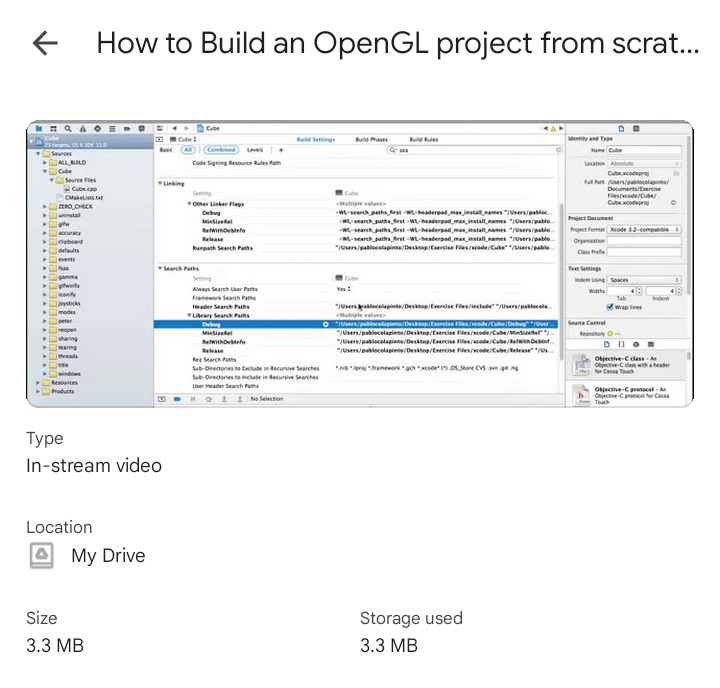
How to Build an OpenGL project from scratch.mp4


Building an OpenGL project from scratch involves several steps, including setting up the development environment, writing code, and compiling the project. Here's a basic guide to get you started:

1. Set Up Your Development Environment

a. Install a C++ Compiler:

  • Windows: You can use MinGW or Microsoft Visual Studio.
  • macOS: Xcode comes with a compiler.
  • Linux: GCC is commonly used.

b. Install a Build System:

  • CMake: A cross-platform build system that works with most compilers.

c. Install OpenGL Libraries:

  • GLFW or GLUT for window management and input.
  • GLEW or GLAD for managing OpenGL extensions.

2. Download and Install Dependencies

a. GLFW:

  • Go to the GLFW website, download the appropriate binaries or source, and follow the installation instructions.

b. GLEW or GLAD:

3. Create a Basic Project Structure

a. Directory Structure:

  • project_root/
    • src/ (source files)
    • include/ (header files)
    • libs/ (libraries)
    • CMakeLists.txt (if using CMake)

b. Create Main Source File:

  • src/main.cpp
cpp
#include <GL/glew.h> #include <GLFW/glfw3.h> #include <iostream> void framebuffer_size_callback(GLFWwindow* window, int width, int height) { glViewport(0, 0, width, height); } int main() { // Initialize GLFW if (!glfwInit()) { std::cerr << "Failed to initialize GLFW" << std::endl; return -1; } // Create a windowed mode window and its OpenGL context GLFWwindow* window = glfwCreateWindow(640, 480, "Hello World", nullptr, nullptr); if (!window) { std::cerr << "Failed to create GLFW window" << std::endl; glfwTerminate(); return -1; } // Make the window's context current glfwMakeContextCurrent(window); glfwSetFramebufferSizeCallback(window, framebuffer_size_callback); // Initialize GLEW if (glewInit() != GLEW_OK) { std::cerr << "Failed to initialize GLEW" << std::endl; return -1; } // Main loop while (!glfwWindowShouldClose(window)) { // Render glClear(GL_COLOR_BUFFER_BIT); // Swap buffers glfwSwapBuffers(window); // Poll for and process events glfwPollEvents(); } glfwTerminate(); return 0; }

4. Configure the Build System

a. Using CMake:

  • Create a CMakeLists.txt file in the project root:
cmake
cmake_minimum_required(VERSION 3.10) project(OpenGLProject) set(CMAKE_CXX_STANDARD 11) # Find GLFW find_package(GLFW3 REQUIRED) # Find GLEW find_package(GLEW REQUIRED) # Include directories include_directories(${GLFW_INCLUDE_DIRS} ${GLEW_INCLUDE_DIRS}) # Add executable add_executable(OpenGLProject src/main.cpp) # Link libraries target_link_libraries(OpenGLProject ${GLFW_LIBRARIES} ${GLEW_LIBRARIES} ${OPENGL_gl_LIBRARY})

b. Build the Project:

  • Open a terminal and navigate to your project root.
  • Run:
sh
mkdir build cd build cmake .. make

5. Run the Application

After building, you should find an executable in the build directory. Run it to see your OpenGL window.

This setup provides a minimal OpenGL application. From here, you can start adding shaders, textures, and other OpenGL features.


Enjoy! Follow us for more... 

How to use GLFW callbacks.mp4


GLFW (Graphics Library Framework) provides a set of callback functions to handle various events in a windowing application. Here's a step-by-step guide on how to use GLFW callbacks:

1. Initialize GLFW

Before setting up callbacks, initialize GLFW and create a window:

cpp
#include <GLFW/glfw3.h> int main() { if (!glfwInit()) { return -1; } GLFWwindow* window = glfwCreateWindow(640, 480, "GLFW Callbacks", NULL, NULL); if (!window) { glfwTerminate(); return -1; } glfwMakeContextCurrent(window); // Set up callbacks here... while (!glfwWindowShouldClose(window)) { // Rendering code... glfwSwapBuffers(window); glfwPollEvents(); } glfwDestroyWindow(window); glfwTerminate(); return 0; }

2. Define Callback Functions

Define the callback functions you want to use. GLFW provides callbacks for events like keyboard input, mouse movement, window resizing, etc.

Example of a keyboard callback function:

cpp
void keyCallback(GLFWwindow* window, int key, int scancode, int action, int mods) { if (action == GLFW_PRESS) { if (key == GLFW_KEY_ESCAPE) { glfwSetWindowShouldClose(window, GLFW_TRUE); } } }

3. Set Callbacks

Use glfwSetKeyCallback, glfwSetMouseButtonCallback, glfwSetCursorPosCallback, and other relevant functions to register your callbacks.

cpp
int main() { if (!glfwInit()) { return -1; } GLFWwindow* window = glfwCreateWindow(640, 480, "GLFW Callbacks", NULL, NULL); if (!window) { glfwTerminate(); return -1; } glfwMakeContextCurrent(window); // Set the key callback function glfwSetKeyCallback(window, keyCallback); // Set other callbacks as needed // glfwSetMouseButtonCallback(window, mouseButtonCallback); // glfwSetCursorPosCallback(window, cursorPosCallback); while (!glfwWindowShouldClose(window)) { // Rendering code... glfwSwapBuffers(window); glfwPollEvents(); } glfwDestroyWindow(window); glfwTerminate(); return 0; }

4. Implement Additional Callbacks

Other common callbacks you might want to implement include:

  • Mouse Button Callback:

    cpp
    void mouseButtonCallback(GLFWwindow* window, int button, int action, int mods) { if (button == GLFW_MOUSE_BUTTON_LEFT && action == GLFW_PRESS) { // Handle left mouse button press } }
  • Cursor Position Callback:

    cpp
    void cursorPosCallback(GLFWwindow* window, double xpos, double ypos) { // Handle cursor movement }
  • Window Resize Callback:

    cpp
    void framebufferSizeCallback(GLFWwindow* window, int width, int height) { glViewport(0, 0, width, height); }

Make sure to call glfwSetFramebufferSizeCallback(window, framebufferSizeCallback); to register the window resize callback.

5. Handle Events in the Main Loop

Call glfwPollEvents() in your main loop to ensure that callbacks are processed.

By following these steps, you can handle various user interactions and system events in your GLFW-based application.


Download now

Enjoy! Follow us for more... 

What is sonnets.mp4


Download now

Enjoy! Follow us for more... 

How to Generate Vertex Buffer Objects.mp4


To generate Vertex Buffer Objects (VBOs) in OpenGL, follow these steps:

  1. Initialize OpenGL Context: Ensure your OpenGL context is properly set up before creating VBOs.

  2. Generate VBOs: Use glGenBuffers to create one or more buffer objects. This function generates unique IDs for the buffers.

    c
    GLuint vbo; glGenBuffers(1, &vbo);
  3. Bind the VBO: Bind the buffer object to the GL_ARRAY_BUFFER target so that subsequent operations affect this buffer.

    c
    glBindBuffer(GL_ARRAY_BUFFER, vbo);
  4. Upload Data: Provide data to the bound buffer using glBufferData. This function allocates memory and copies data into the buffer.

    c
    GLfloat vertices[] = { // vertex data }; glBufferData(GL_ARRAY_BUFFER, sizeof(vertices), vertices, GL_STATIC_DRAW);
    • GL_ARRAY_BUFFER specifies the target buffer.
    • sizeof(vertices) is the size of the data in bytes.
    • vertices is the pointer to the data.
    • GL_STATIC_DRAW is a hint for how the buffer will be used. Other options include GL_DYNAMIC_DRAW and GL_STREAM_DRAW.
  5. Unbind the VBO: Optionally, unbind the buffer by binding to 0 to avoid accidentally modifying it.

    c
    glBindBuffer(GL_ARRAY_BUFFER, 0);
  6. Use the VBO: Bind the VBO when setting up vertex attributes in your rendering code.

    c
    glBindBuffer(GL_ARRAY_BUFFER, vbo); glVertexAttribPointer(0, 3, GL_FLOAT, GL_FALSE, 0, (void*)0); glEnableVertexAttribArray(0);
    • 0 is the index of the vertex attribute.
    • 3 is the number of components per vertex attribute.
    • GL_FLOAT specifies the type of the data.
    • GL_FALSE means the data is not normalized.
    • 0 is the stride (the byte offset between consecutive vertex attributes).
    • (void*)0 is the offset of the first component.
  7. Render: Use the VBO during rendering and ensure to bind the appropriate VAO (Vertex Array Object) if you are using one.

    c
    glBindVertexArray(vao); glDrawArrays(GL_TRIANGLES, 0, vertexCount); glBindVertexArray(0);

By following these steps, you should be able to generate and use VBOs in your OpenGL application.


 Download now

Enjoy! Follow us for more... 

How to Choose a multipage controller.mp4


Download now

Enjoy! Follow us for more... 

How to add texture coordinates during cpp programming using Xcode.mp4


Adding texture coordinates to a 3D model in C++ with Xcode typically involves several steps. These steps assume you're working with a basic OpenGL setup and have a basic understanding of 3D graphics programming. Here's a simplified guide:

1. Setup Your Development Environment

Make sure you have Xcode installed and set up for C++ and OpenGL development. Create a new project or open an existing one where you plan to implement texture coordinates.

2. Define Your Vertex and Texture Coordinate Data

You'll need to define your vertex data and texture coordinate data. A typical vertex structure might look like this:

cpp
struct Vertex { glm::vec3 position; glm::vec2 texCoords; };

3. Create and Populate Your Buffers

In your code, you will need to create a vertex buffer and a texture coordinate buffer. Here’s an example using OpenGL:

cpp
// Define vertices and texture coordinates Vertex vertices[] = { // Positions // Texture Coords { glm::vec3(-0.5f, -0.5f, 0.0f), glm::vec2(0.0f, 0.0f) }, { glm::vec3( 0.5f, -0.5f, 0.0f), glm::vec2(1.0f, 0.0f) }, { glm::vec3( 0.5f, 0.5f, 0.0f), glm::vec2(1.0f, 1.0f) }, { glm::vec3(-0.5f, 0.5f, 0.0f), glm::vec2(0.0f, 1.0f) } }; // Create and bind VAO, VBO, and EBO unsigned int VAO, VBO; glGenVertexArrays(1, &VAO); glGenBuffers(1, &VBO); glBindVertexArray(VAO); glBindBuffer(GL_ARRAY_BUFFER, VBO); glBufferData(GL_ARRAY_BUFFER, sizeof(vertices), vertices, GL_STATIC_DRAW); glVertexAttribPointer(0, 3, GL_FLOAT, GL_FALSE, sizeof(Vertex), (void*)offsetof(Vertex, position)); glEnableVertexAttribArray(0); glVertexAttribPointer(1, 2, GL_FLOAT, GL_FALSE, sizeof(Vertex), (void*)offsetof(Vertex, texCoords)); glEnableVertexAttribArray(1); glBindBuffer(GL_ARRAY_BUFFER, 0); glBindVertexArray(0);

4. Load and Bind Your Texture

You’ll need to load a texture and bind it to a texture unit. Here’s an example using the stb_image library for texture loading:

cpp
int width, height, nrChannels; unsigned char *data = stbi_load("path/to/texture.jpg", &width, &height, &nrChannels, 0); unsigned int texture; glGenTextures(1, &texture); glBindTexture(GL_TEXTURE_2D, texture); glTexImage2D(GL_TEXTURE_2D, 0, GL_RGB, width, height, 0, GL_RGB, GL_UNSIGNED_BYTE, data); glGenerateMipmap(GL_TEXTURE_2D); stbi_image_free(data);

5. Modify Your Shader Programs

Make sure your vertex shader and fragment shader are set up to handle texture coordinates. A simple example vertex shader might look like this:

glsl
#version 330 core layout(location = 0) in vec3 aPos; layout(location = 1) in vec2 aTexCoord; out vec2 TexCoord; uniform mat4 model; uniform mat4 view; uniform mat4 projection; void main() { gl_Position = projection * view * model * vec4(aPos, 1.0); TexCoord = aTexCoord; }

And a fragment shader:

glsl
#version 330 core out vec4 FragColor; in vec2 TexCoord; uniform sampler2D texture1; void main() { FragColor = texture(texture1, TexCoord); }

6. Render the Object

Finally, bind the texture and VAO, then draw the object:

cpp
glUseProgram(shaderProgram); glBindTexture(GL_TEXTURE_2D, texture); glBindVertexArray(VAO); glDrawArrays(GL_TRIANGLES, 0, 6);

7. Compile and Run

Build your project in Xcode and run it. If everything is set up correctly, you should see the texture applied to your 3D model.

Troubleshooting

  • Ensure that your paths for texture files are correct.
  • Make sure your shaders are compiling without errors.
  • Check for OpenGL errors using glGetError() for debugging.

This guide assumes you're using basic OpenGL. If you're using a more advanced framework or library, such as GLFW or SDL, some steps might differ. 


 Download now

Enjoy! Follow us for more... 

How to load image textures during cpp programming using xCode.mp4


 To load image textures in C++ using Xcode, you'll generally need to use a graphics library like OpenGL, SDL, or similar. Here's a step-by-step guide for using OpenGL with the FreeImage library to load image textures:

1. Set Up Your Xcode Project

  1. Create a New Project: Open Xcode and create a new C++ project (e.g., a Command Line Tool or a macOS app).

  2. Add Dependencies: You need to include libraries like OpenGL and FreeImage.

    • FreeImage: You can either download it manually from FreeImage or use a package manager like Homebrew. If you use Homebrew, you can install FreeImage with brew install freeimage.

2. Configure Build Settings

  1. Link Libraries:

    • Go to your Xcode project settings.
    • Under the "Build Phases" tab, find "Link Binary With Libraries."
    • Add OpenGL.framework (for OpenGL support) and any other frameworks you need (e.g., GLUT for window management).
  2. Include Headers:

    • Go to "Build Settings" and find "Header Search Paths."
    • Add the path where FreeImage headers are located.
  3. Add FreeImage Library:

    • Under "Build Phases," add the FreeImage library (libfreeimage.a) to the "Link Binary With Libraries" section.

3. Load and Use Textures

Here’s an example of how you might load and use an image as a texture with OpenGL and FreeImage:

cpp
#include <GL/glut.h> #include <FreeImage.h> #include <iostream> // Function to load texture GLuint LoadTexture(const char *filename) { GLuint textureID; int width, height, bpp; BYTE *bits; // Load the image using FreeImage FIBITMAP *bitmap = FreeImage_Load(FIF_PNG, filename, PNG_DEFAULT); if (!bitmap) { std::cerr << "Failed to load image: " << filename << std::endl; return 0; } // Convert to 32-bit bitmap FIBITMAP *bitmap32 = FreeImage_ConvertTo32Bits(bitmap); FreeImage_Unload(bitmap); // Get image dimensions width = FreeImage_GetWidth(bitmap32); height = FreeImage_GetHeight(bitmap32); // Get image data bits = FreeImage_GetBits(bitmap32); // Generate texture glGenTextures(1, &textureID); glBindTexture(GL_TEXTURE_2D, textureID); glTexImage2D(GL_TEXTURE_2D, 0, GL_RGBA, width, height, 0, GL_BGRA, GL_UNSIGNED_BYTE, bits); // Set texture parameters glTexParameteri(GL_TEXTURE_2D, GL_TEXTURE_MIN_FILTER, GL_LINEAR); glTexParameteri(GL_TEXTURE_2D, GL_TEXTURE_MAG_FILTER, GL_LINEAR); // Clean up FreeImage_Unload(bitmap32); return textureID; } int main(int argc, char** argv) { // Initialize GLUT and create a window (if needed for testing) glutInit(&argc, argv); glutInitDisplayMode(GLUT_DOUBLE | GLUT_RGBA); glutInitWindowSize(800, 600); glutCreateWindow("OpenGL Texture Example"); // Initialize GLEW or similar if necessary // ... // Load texture GLuint texture = LoadTexture("path_to_image.png"); // Use the texture in your rendering loop // ... return 0; }

4. Run Your Project

Compile and run your project. Ensure that the image file path is correct and that all libraries are correctly linked.

Additional Notes:

  • Make sure you handle error checking and manage resources properly to avoid leaks or crashes.
  • For more advanced texture handling, consider using other libraries or frameworks that might provide higher-level abstractions.

By following these steps, you should be able to load image textures into your OpenGL application using C++ in Xcode.


Download now

Enjoy! Follow us for more... 

Reading information from a spreadsheet in Google Script.mp4


To read information from a Google Sheets spreadsheet using Google Apps Script, follow these steps:

  1. Open Google Sheets: Open the spreadsheet you want to work with.

  2. Open the Script Editor:

    • Go to Extensions > Apps Script in the menu.
  3. Write Your Script:

    • You'll see a default Code.gs file where you can write your script. Here's a basic example of how to read data from a specific sheet:
javascript
function readSheetData() { // Open the active spreadsheet var sheet = SpreadsheetApp.getActiveSpreadsheet().getActiveSheet(); // Get the data range (adjust range as needed) var range = sheet.getDataRange(); // Get values in a 2D array var values = range.getValues(); // Loop through the values and log them for (var i = 0; i < values.length; i++) { for (var j = 0; j < values[i].length; j++) { Logger.log(values[i][j]); } } }
  1. Save and Run:

    • Save your script by clicking the disk icon or File > Save.
    • Run the script by selecting the function name (readSheetData) from the dropdown menu and clicking the play button (▶️).
  2. Check Logs:

    • To view the logged output, click on View > Logs in the Script Editor.

Explanation:

  • SpreadsheetApp.getActiveSpreadsheet() retrieves the active spreadsheet.
  • getActiveSheet() gets the currently active sheet.
  • getDataRange() returns the range of cells containing data.
  • getValues() retrieves the data as a 2D array where each inner array represents a row in the spreadsheet.

Feel free to modify the script to target specific sheets or ranges as needed!


Download now

Enjoy! Follow us for more... 

How to add keyboard input during cpp programming using xCode.mp4

To add keyboard input in a C++ program using Xcode, follow these steps:

  1. Create a New Project:

    • Open Xcode.
    • Choose "Create a new Xcode project."
    • Select "Command Line Tool" under macOS.
    • Click "Next," then name your project and select C++ as the language.
    • Click "Next," choose a location, and then click "Create."
  2. Write Your Code:

    • Open the main.cpp file (or the file where you want to handle input).

    • Use standard C++ input methods. Here's a simple example to get keyboard input:

      cpp
      #include <iostream> using namespace std; int main() { string input; cout << "Enter something: "; getline(cin, input); // Use getline to read an entire line of input cout << "You entered: " << input << endl; return 0; }
  3. Build and Run:

    • Click the "Run" button (the play icon) or press Cmd + R.
    • A terminal window will open at the bottom of Xcode where you can enter your input.
  4. Enter Input:

    • After running your program, you can type input directly into the terminal window and press Enter to see the results.

That's it! You should now be able to handle keyboard input in your C++ program using Xcode.


 Download now

Enjoy! Follow us for more... 

How to set-up a Flex project in Flash Builder 4.5.mp4

  Download :  How to set-up a Flex project in Flash Builder 4.5.mp4 How to Set-Up a Flex Project in Flash Builder 4.5 (Beginner Friendly Gui...