Working with multiple files in buffers using nano.mp4


Download Video: Working with multiple files in buffers using nano.mp4

Alright, nano may look simple, but it actually handles multiple files (buffers) pretty cleanly once you know the moves. Let’s break it down in a practical, no-nonsense way ๐Ÿ‘‡


What is a buffer in nano?

In nano, each open file lives in its own buffer (think: a temporary workspace in memory).

You can:

  • Open many files at once

  • Switch between them

  • Copy/paste text across files

  • Save or close them independently


Opening multiple files

You’ve got two main ways:

1. Open multiple files at once

nano file1.txt file2.txt file3.txt

Nano opens file1 first, but all files are loaded as buffers.


2. Open another file while nano is already running

Press:

Ctrl + R

Then:

Ctrl + X

Now type the filename and hit Enter.

➡️ Boom, new file = new buffer.


Switching between buffers (most important part)

Use:

Alt + >

Go to next buffer

Alt + <

Go to previous buffer

๐Ÿ’ก On some systems, Alt = Esc, so:

  • Press Esc, release, then press > or <

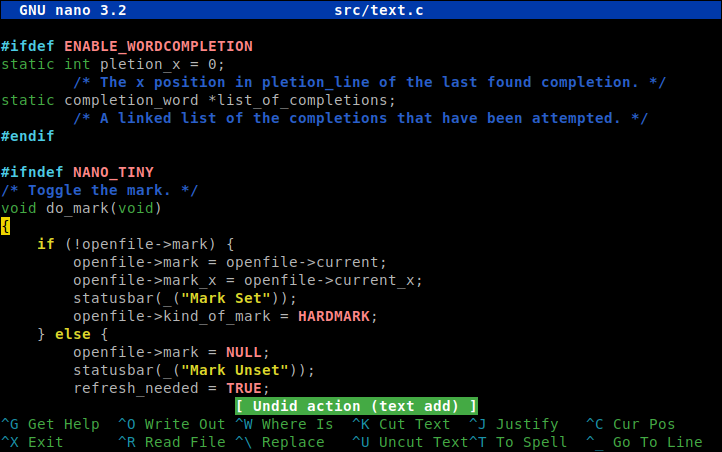
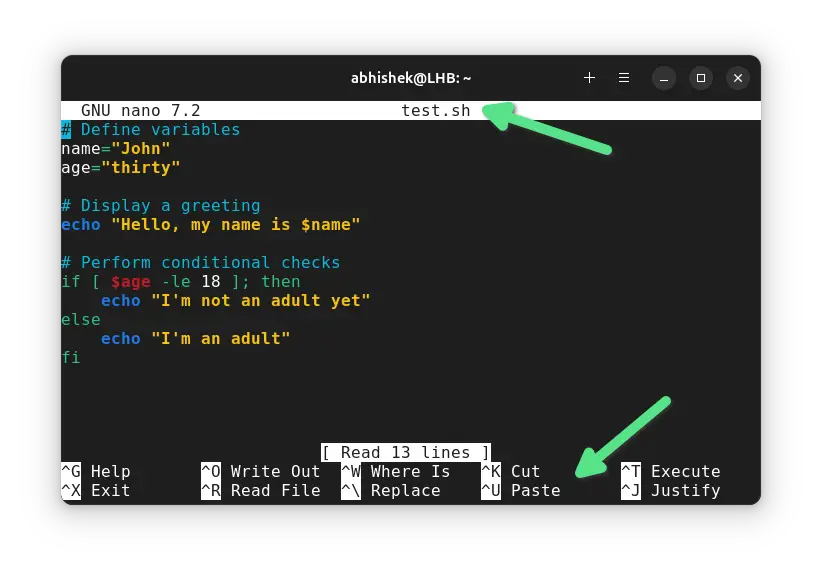
Nano shows the current filename at the top, so you always know which buffer you’re in.


Seeing all open buffers

Nano doesn’t show a buffer list UI, but you can cycle through them using:

Alt + <   /   Alt + >

That’s the only way—simple but effective.


Copy & paste between files (buffers)

This is where nano buffers really shine:

Step 1: Mark text

Ctrl + ^

(or Ctrl + Shift + 6)

Move the cursor to select text.

Step 2: Copy (cut)

Alt + 6   → Copy
Ctrl + K  → Cut

Step 3: Switch buffer

Alt + >   or   Alt + <

Step 4: Paste

Ctrl + U

Now you’re moving text between files like a pro ๐Ÿ˜Ž


Saving specific buffers

Save current file:

Ctrl + O

If the file is new, nano asks for a filename.

Each buffer is saved independently.


Closing buffers safely

When exiting:

Ctrl + X

Nano will:

  • Ask to save if the buffer has changes

  • Move to the next buffer automatically

You exit nano only after all buffers are handled.


Bonus: Open file at a specific line

Super useful for logs or code:

nano +120 app.log

Opens app.log directly at line 120.


Quick cheat sheet

Ctrl + R + Ctrl + X → Open new file in buffer
Alt + > / Alt + <  → Switch buffers
Ctrl + ^           → Start selection
Alt + 6            → Copy
Ctrl + K           → Cut
Ctrl + U           → Paste
Ctrl + O           → Save buffer
Ctrl + X           → Exit


Enjoy! Follow us for more... 

Introduction about the foundations of Laravel.mp4


Download Video : introduction to the foundations of Laravel.mp4


Introduction to the Foundations of Laravel

Laravel is a modern, open-source PHP web application framework designed to make web development faster, cleaner, and more enjoyable. It is built on the MVC (Model–View–Controller) architecture and focuses heavily on developer productivity, code readability, and long-term project maintainability.

At its core, Laravel provides a strong foundation by handling common web development tasks—such as routing, authentication, database interaction, sessions, and caching—out of the box. Instead of reinventing the wheel, developers can focus on building features and logic that actually matter.

The foundation of Laravel is powered by several key concepts:

  • Elegant Routing System – Allows developers to define application URLs in a simple and expressive way.

  • MVC Architecture – Separates business logic (Models), user interface (Views), and request handling (Controllers) for clean and organized code.

  • Eloquent ORM – A powerful and intuitive database abstraction layer that lets you work with databases using PHP syntax instead of complex SQL queries.

  • Blade Templating Engine – A lightweight and fast templating system for creating dynamic UI layouts.

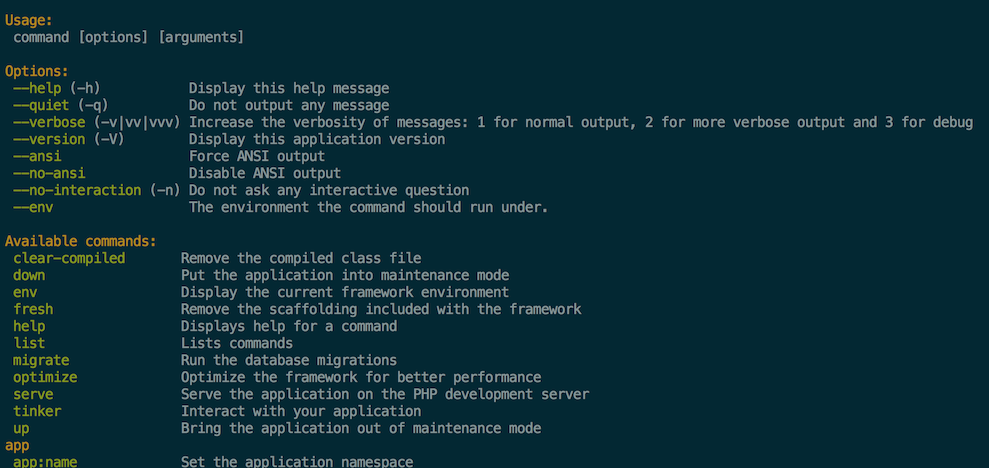
  • Artisan CLI – A command-line tool that boosts productivity by automating repetitive tasks like migrations, controllers, and testing.

  • Built-in Security – Protection against common vulnerabilities such as SQL injection, CSRF, and XSS is baked into Laravel’s core.

Laravel’s foundation is also deeply integrated with modern development practices like dependency injection, service containers, environment configuration, and RESTful APIs. This makes it suitable for everything from small projects to large-scale enterprise applications.

In short, Laravel’s foundation is all about simplicity, structure, and scalability, making it one of the most popular PHP frameworks in the world today—especially for developers who want clean code and rapid development without sacrificing performance or security.


Enjoy! Follow us for more... 

How to use SQL CE.mp4


Download Video : How to use SQL CE.mp4

SQL Server Compact Edition (SQL CE). I’ll assume you want to actually use it, not just read theory.


What is SQL Server Compact Edition (SQL CE)?

SQL CE is a lightweight, embedded database by Microsoft.

  • No separate database server

  • Runs inside your application

  • Best for desktop apps, mobile apps, small tools

  • File-based database: .sdf

⚠️ Heads-up: SQL CE is deprecated by Microsoft, but many legacy apps still use it.


When should you use SQL CE?

Good choice if:

  • You need a local database

  • App must work offline

  • Small data size (up to ~4GB)

  • No need for heavy concurrency

Not good for:

  • Web apps

  • High traffic systems

  • Large enterprise databases


Step 1: Install SQL CE

You need SQL Server Compact installed.

Typical options:

  • SQL Server Compact 4.0

  • Comes as runtime + developer tools

After install, you’ll get:

  • System.Data.SqlServerCe.dll


Step 2: Create a SQL CE Database

A SQL CE database is just a file (.sdf).

Create Database in C#

using System.Data.SqlServerCe;

string connectionString =
    "Data Source=MyDatabase.sdf; Persist Security Info=False;";

SqlCeEngine engine = new SqlCeEngine(connectionString);
engine.CreateDatabase();

That’s it — database created ๐ŸŽ‰


Step 3: Connect to SQL CE

SqlCeConnection conn = new SqlCeConnection(
    "Data Source=MyDatabase.sdf;"
);
conn.Open();

Step 4: Create Tables

SQL syntax is very similar to SQL Server.

string query = @"
CREATE TABLE Users (
    Id INT IDENTITY PRIMARY KEY,
    Name NVARCHAR(100),
    Email NVARCHAR(100)
)";

SqlCeCommand cmd = new SqlCeCommand(query, conn);
cmd.ExecuteNonQuery();

Step 5: Insert Data

string insertQuery =
    "INSERT INTO Users (Name, Email) VALUES (@name, @email)";

SqlCeCommand cmd = new SqlCeCommand(insertQuery, conn);
cmd.Parameters.AddWithValue("@name", "Aman");
cmd.Parameters.AddWithValue("@email", "aman@example.com");
cmd.ExecuteNonQuery();

Step 6: Read Data

string selectQuery = "SELECT * FROM Users";
SqlCeCommand cmd = new SqlCeCommand(selectQuery, conn);

SqlCeDataReader reader = cmd.ExecuteReader();

while (reader.Read())
{
    Console.WriteLine(reader["Name"]);
}

Step 7: Update Data

string updateQuery =
    "UPDATE Users SET Email=@email WHERE Id=@id";

SqlCeCommand cmd = new SqlCeCommand(updateQuery, conn);
cmd.Parameters.AddWithValue("@email", "new@mail.com");
cmd.Parameters.AddWithValue("@id", 1);
cmd.ExecuteNonQuery();

Step 8: Delete Data

string deleteQuery = "DELETE FROM Users WHERE Id=@id";

SqlCeCommand cmd = new SqlCeCommand(deleteQuery, conn);
cmd.Parameters.AddWithValue("@id", 1);
cmd.ExecuteNonQuery();

SQL CE Limitations (Important ⚠️)

  • ❌ No stored procedures

  • ❌ No views

  • ❌ Limited SQL functions

  • ❌ Single-user write access

  • ✔️ Supports indexes & constraints

  • ✔️ Supports transactions


Common Use Cases

  • Desktop apps (WinForms, WPF)

  • Offline-first apps

  • POS systems

  • Embedded tools

  • Legacy mobile apps


Modern Alternatives (Recommended ๐Ÿš€)

If starting a new project, consider:

  • SQLite (most popular replacement)

  • SQL Server Express

  • LocalDB

SQLite is usually the best drop-in replacement.


Enjoy! Follow us for more... 

What is Unicode.mp4


Download What is Unicode.mp4

Unicode is a universal text standard that lets computers represent and work with characters from almost every language in the world—consistently.

Think of it like this ๐Ÿ‘‡
Before Unicode, different systems used different codes for letters. Text would break, show weird symbols, or turn into ❓❓ when moved between computers. Unicode fixed that mess.


What Unicode actually does

Unicode assigns a unique number (code point) to every character.

Examples:

  • A → U+0041

  • a → U+0061

  • เค… (Hindi) → U+0905

  • ไฝ  (Chinese) → U+4F60

  • ๐Ÿ˜€ → U+1F600

No matter the device, OS, or country — these codes mean the same character everywhere ๐ŸŒ


Why Unicode is important

Without Unicode:

  • Multilingual websites would be impossible

  • Emojis wouldn’t work reliably

  • Hindi, Arabic, Japanese, etc. would clash with English text

  • Data transfer between systems would break

With Unicode:

  • One system supports all languages

  • Text is portable and future-proof

  • Apps, databases, APIs stay consistent


Unicode vs Encoding (important distinction)

Unicode is the standard, but it needs an encoding to store characters in bytes.

Common encodings:

  • UTF-8 (most popular, web default)

  • UTF-16

  • UTF-32

Example:

  • Character A

    • Unicode: U+0041

    • UTF-8 bytes: 41

๐Ÿ‘‰ UTF-8 + Unicode = modern internet


Where you see Unicode daily

  • Websites (HTML uses UTF-8)

  • Programming languages (PHP, Python, Java, JS)

  • Databases (MySQL utf8mb4)

  • Mobile apps

  • Emojis, symbols, math signs, currency ๐Ÿ’ฐ


In one line

Unicode is the global language of computers that makes text readable everywhere


Enjoy! Follow us for more... 

What is nano.mp4


Download: What is nano .mp4

Nano is a simple, lightweight text editor for Linux (and other Unix-like systems) that runs inside the terminal. It’s loved by beginners because it’s straightforward—no confusing modes, no steep learning curve.

Image

Image

Image


What Nano Is Used For

You use nano to:

  • Edit configuration files (.conf, .env, .ini)

  • Write scripts (.sh, .py, .php)

  • Quickly change system files (like /etc/hosts)

  • Make fast edits on remote servers via SSH

How to Open Nano

nano filename.txt

If the file doesn’t exist, nano creates it.

Why People Like Nano

  • ๐ŸŸข Beginner-friendly – no modes like Vim

  • ๐ŸŸข Runs in terminal – perfect for servers

  • ๐ŸŸข Keyboard shortcuts shown on screen

  • ๐ŸŸข Very lightweight & fast

Basic Nano Commands (Must-Know)

ActionShortcut
Save fileCtrl + O → Enter
Exit nanoCtrl + X
Cut lineCtrl + K
Paste lineCtrl + U
Search textCtrl + W
Replace textCtrl + \
Go to lineCtrl + _

(Ctrl is shown as ^ inside nano)

Example: Edit a Config File

sudo nano /etc/nginx/nginx.conf

Nano vs Other Editors

  • Nano → simple, fast, beginner-friendly

  • Vim → powerful, steep learning curve

  • Emacs → extremely powerful, heavy

When You Should Use Nano

✔ Quick edits
✔ Learning Linux
✔ Server work over SSH
✔ No time to remember complex commands


Enjoy! Follow us for more... 

How to Set Up PHPUnit in Laravel .mp4


Here is a complete beginner-friendly, step-by-step guide on:

Download : How to Set Up PHPUnit in Laravel (Full Explanation).mp4

Testing is one of the most important parts of professional Laravel development. Laravel comes with PHPUnit pre-installed, but many beginners don’t know how to configure and use it properly.

This guide will explain everything from scratch.


๐Ÿ”ฐ What is PHPUnit?

PHPUnit is a testing framework for PHP applications.

It allows you to:

  • Test your application automatically

  • Verify that your code works as expected

  • Prevent bugs when making changes

  • Build reliable and stable applications

Laravel uses PHPUnit as its default testing tool.


✅ Step 1 – Install Laravel (If Not Installed)

Before setting up PHPUnit, you need a Laravel project.

Run this command to create a fresh Laravel project:

composer create-project laravel/laravel laravel-test-app

Then go inside the project folder:

cd laravel-test-app

✅ Step 2 – Verify PHPUnit is Already Installed

Laravel automatically installs PHPUnit when you create a project.

To confirm, check the composer.json file.

Open it and find:

"require-dev": {
    "phpunit/phpunit": "^10.0"
}

This means PHPUnit is already included!


✅ Step 3 – Understand the PHPUnit Configuration File

Laravel provides a pre-configured file named:

๐Ÿ“ phpunit.xml

This file controls how tests run.

Open phpunit.xml in your project root.

You will see something like:

<phpunit bootstrap="vendor/autoload.php"
         colors="true">

This file defines:

  • Test directories

  • Environment variables

  • Database configuration for testing


✅ Step 4 – Testing Directory Structure

Laravel already creates a folder for tests:

๐Ÿ“ tests/

Inside it, there are two folders:

FolderPurpose
FeatureFor testing application features
UnitFor testing small pieces of code

Example:

tests/
 ├── Feature/
 ├── Unit/
 ├── TestCase.php

✅ Step 5 – Running PHPUnit for the First Time

To run PHPUnit tests, simply execute:

php artisan test

OR

vendor/bin/phpunit

If everything is correct, you will see:

✔ All tests passed

This means PHPUnit is successfully set up.


✅ Step 6 – Creating Your First Test

Let’s create a sample test.

Run this command:

php artisan make:test ExampleTest

This creates:

๐Ÿ“ tests/Feature/ExampleTest.php

Open that file:

public function test_example()
{
    $response = $this->get('/');

    $response->assertStatus(200);
}

This test checks:

๐Ÿ‘‰ “Is the homepage loading correctly?”


Run the Test

php artisan test

If your website home page works, the test will pass.


✅ Step 7 – Setting Up Testing Database

Testing should NOT use your real database.

Laravel allows a separate testing database.

Open .env file and create a testing database:

DB_DATABASE=laravel

Now open:

๐Ÿ“ phpunit.xml

Find this section:

<env name="DB_CONNECTION" value="sqlite"/>
<env name="DB_DATABASE" value=":memory:"/>

This means:

✔ Laravel will use an in-memory database for tests
✔ Your real data will stay safe


✅ Step 8 – Writing Unit Tests

Unit tests check small parts of code.

Create a unit test:

php artisan make:test MathTest --unit

Open:

๐Ÿ“ tests/Unit/MathTest.php

Example test:

public function test_addition()
{
    $sum = 2 + 2;
    $this->assertEquals(4, $sum);
}

Run again:

php artisan test

✅ Step 9 – Testing Controllers

Example:

Create a controller test:

php artisan make:test UserControllerTest

Inside the test:

public function test_user_page()
{
    $response = $this->get('/users');

    $response->assertStatus(200);
}

This ensures:

✔ Your routes and controllers work correctly


✅ Step 10 – Testing Models

You can also test database models.

Example:

public function test_user_creation()
{
    $user = User::create([
        'name' => 'Test',
        'email' => 'test@example.com',
        'password' => bcrypt('password')
    ]);

    $this->assertDatabaseHas('users', [
        'email' => 'test@example.com'
    ]);
}

๐ŸŽฏ Why PHPUnit is Important in Laravel

Using PHPUnit helps you:

  • Catch bugs early

  • Improve code quality

  • Automate testing

  • Save development time

  • Build professional applications


๐Ÿ›  Common PHPUnit Commands

CommandPurpose
php artisan testRun all tests
vendor/bin/phpunitRun PHPUnit manually
php artisan make:test TestNameCreate new test
php artisan make:test TestName --unitCreate unit test

๐Ÿš€ Final Conclusion

Setting up PHPUnit in Laravel is very easy because:

✔ Laravel includes PHPUnit by default
✔ No extra installation needed
✔ Ready-to-use configuration
✔ Powerful testing features

By learning PHPUnit, you become a better Laravel developer.


Enjoy! Follow us for more... 

How to Enriching the RSS feed.mp4


Download: How to Enrich an RSS Feed – Full Beginner-Friendly Guide.mp4

Enriching an RSS feed means improving and enhancing the content and structure of an existing RSS feed so that it becomes more useful, attractive, and informative for readers and applications.

This guide will explain everything in simple language.


๐Ÿ”น What is an RSS Feed?

RSS stands for Really Simple Syndication.

It is a standard format used by websites to share updates like:

  • Blog posts

  • News articles

  • Podcasts

  • Videos

  • Product updates

Instead of visiting a website again and again, users can subscribe to its RSS feed and automatically receive new content.


๐Ÿ”น What Does “Enriching an RSS Feed” Mean?

A normal RSS feed usually contains only:

  • Title

  • Short description

  • Link

  • Publish date

But an enriched RSS feed includes extra valuable information, such as:

  • Full article content

  • Images

  • Author name

  • Categories

  • Media files

  • Custom metadata

So, enriching an RSS feed = making it more informative and user-friendly


๐Ÿ”น Why Should You Enrich an RSS Feed?

Enriching an RSS feed provides many benefits:

✅ Better User Experience

Users get more detailed and meaningful content.

✅ Improved SEO

Search engines understand your content better.

✅ Better Integration

Apps like Feedly, Inoreader, or podcast apps can display richer content.

✅ Higher Engagement

More complete information attracts more readers.


๐Ÿ”น Basic Structure of an RSS Feed

A simple RSS feed looks like this:

<rss version="2.0">
  <channel>
    <title>My Blog</title>
    <link>https://example.com</link>
    <description>Latest updates</description>

    <item>
      <title>First Post</title>
      <link>https://example.com/post1</link>
      <description>This is a post</description>
    </item>

  </channel>
</rss>

This is very basic. Now let’s see how to enrich it.


๐Ÿ”น Ways to Enrich an RSS Feed

There are several techniques to enrich an RSS feed:


1. Add Full Content Instead of Summary

Most feeds only show short descriptions.

Basic Feed:

<description>This is a short summary</description>

Enriched Feed:

<content:encoded>
<![CDATA[
<p>This is the full article content with images and formatting.</p>
]]>
</content:encoded>

This allows readers to see the full post directly in RSS readers.


2. Include Images and Media

Adding images makes the feed visually attractive.

Example:

<enclosure url="https://example.com/image.jpg" type="image/jpeg"/>

Or:

<media:content url="https://example.com/image.jpg" medium="image"/>

This is very important for:

  • News websites

  • YouTube channels

  • Podcasts

  • Blogs


3. Add Author Information

Instead of anonymous posts, include author details.

<author>john@example.com (John Doe)</author>

This makes the feed more professional.


4. Add Categories and Tags

Categories help organize content.

Example:

<category>Technology</category>
<category>Programming</category>

This helps RSS apps filter content easily.


5. Add Publish Date and Update Date

Always include timestamps:

<pubDate>Mon, 15 Jan 2024 10:00:00 GMT</pubDate>

This helps users know when the content was published.


6. Use Custom Metadata

You can add extra information like:

  • Reading time

  • Language

  • Keywords

  • Ratings

Example:

<language>en-us</language>

๐Ÿ”น Tools to Enrich RSS Feeds

You don’t always need to code manually.

There are tools that help enrich RSS feeds:

Popular Tools:

  • Feedburner

  • Zapier

  • Inoreader

  • RSS.app

  • Superfeedr

These tools can:

  • Add images

  • Convert summaries to full text

  • Merge multiple feeds

  • Add custom data


๐Ÿ”น Enriching RSS Feed Using Programming

If you are a developer, you can enrich feeds using:

  • PHP

  • Python

  • JavaScript

  • WordPress plugins

For example in PHP:

$item->addChild('author', 'John Doe');
$item->addChild('category', 'Technology');

๐Ÿ”น Enriching RSS Feed in WordPress

If you use WordPress, it is very easy:

Plugins for RSS Enrichment:

  • Yoast SEO

  • WP RSS Aggregator

  • Feedzy RSS Feeds

These plugins help to:

  • Add featured images

  • Add custom fields

  • Show full content

  • Customize feed structure


๐Ÿ”น Real-Life Example of Enriched RSS Feed

Basic Feed:

  • Title

  • Link

  • Short description

Enriched Feed Contains:

  • Title

  • Full article

  • Featured image

  • Author name

  • Categories

  • Publish date

  • Media files

  • Custom metadata

That is the difference!


๐Ÿ”น Best Practices for Enriching RSS Feeds

To create a high-quality enriched feed:

✔ Include full content
✔ Add images
✔ Use proper formatting
✔ Add author info
✔ Use categories
✔ Keep feed updated
✔ Validate RSS format


๐Ÿ”น Conclusion

Enriching an RSS feed is all about:

๐Ÿ‘‰ Making it more detailed
๐Ÿ‘‰ More attractive
๐Ÿ‘‰ More useful
๐Ÿ‘‰ More professional

For beginners, start by:

  • Adding images

  • Including full content

  • Adding metadata

This will greatly improve your RSS feed quality.


Final Thought

A normal RSS feed is like plain text.
An enriched RSS feed is like a complete digital magazine!


Enjoy! Follow us for more... 

What is SFTP | Exploring SFTP.mp4


Download  What is SFTP? (Full Explanation).mp4

1. Definition of SFTP

SFTP stands for SSH File Transfer Protocol (sometimes mistakenly called Secure FTP).
It is a secure protocol used to transfer files over a network, typically between a local computer and a remote server.

SFTP works over SSH (Secure Shell), which means all data—including file contents, commands, usernames, and passwords—is fully encrypted.


2. Why SFTP Exists

Traditional FTP sends data (including passwords) in plain text, which makes it vulnerable to:

  • Password sniffing

  • Man-in-the-middle attacks

  • Data tampering

SFTP was designed to solve these security issues by using SSH encryption.


3. How SFTP Works

SFTP operates using a single secure connection over port 22 (default SSH port).

Process flow:

  1. Client connects to the server using SSH

  2. Server authenticates the user

  3. A secure encrypted tunnel is created

  4. Files are transferred safely inside that tunnel


4. Key Features of SFTP

  • ๐Ÿ” Strong Encryption (AES, ChaCha20, etc.)

  • ๐Ÿ”‘ Secure Authentication

    • Password-based

    • SSH key-based (recommended)

  • ๐Ÿ“ File Management Support

    • Upload & download files

    • Create, delete, rename files/directories

    • Change permissions

  • ๐Ÿ“ก Single Connection (simpler firewall configuration)

  • ๐Ÿงพ Data Integrity Checks


5. SFTP vs FTP vs FTPS

FeatureFTPFTPSSFTP
Encryption❌ No✅ Yes (SSL/TLS)✅ Yes (SSH)
Port UsageMultipleMultipleSingle (22)
Security LevelLowMediumHigh
Firewall Friendly
Uses SSH

SFTP is the most secure and easiest to configure


6. Common Uses of SFTP

  • Website file uploads

  • Server backups

  • Secure file sharing

  • DevOps & CI/CD deployments

  • Cloud server management

  • Transferring sensitive business data


7. Authentication Methods in SFTP

a) Password Authentication

  • Username + password

  • Simple but less secure

b) SSH Key Authentication (Best Practice)

  • Uses a public/private key pair

  • More secure than passwords

  • Widely used in production servers


8. Popular SFTP Clients

  • FileZilla

  • WinSCP

  • Cyberduck

  • OpenSSH (Terminal)

  • PuTTY (PSFTP)


9. SFTP Command Example (Linux / macOS)

sftp user@server_ip

Common commands:

ls        # list files
cd        # change directory
put file  # upload file
get file  # download file
exit      # quit

10. Advantages of SFTP

  • ✔ Highly secure

  • ✔ Reliable data transfer

  • ✔ Easy firewall configuration

  • ✔ Strong authentication options

  • ✔ Supported on almost all servers


11. Disadvantages of SFTP

  • ❌ Slightly slower than FTP due to encryption

  • ❌ Requires SSH access on server


12. Is SFTP the Same as FTPS?

No

  • SFTP → Runs over SSH

  • FTPS → Runs over SSL/TLS

They are completely different protocols despite similar names.


13. When Should You Use SFTP?

Use SFTP when:

  • Security is a priority

  • Transferring confidential data

  • Managing production servers

  • You want a simple and reliable setup


14. Final Summary

SFTP is a secure, encrypted file transfer protocol that works over SSH.
It is widely used in modern servers due to its high security, reliability, and simplicity.

๐Ÿ” If security matters, always choose SFTP over FTP.


Enjoy! Follow us for more... 

What is the Atom Syndication feed.mp4


Download: What Is the Atom Syndication Feed? A Complete Beginner’s Guide.mp4

The Atom Syndication Feed, commonly known as an Atom feed, is a web standard used to publish and distribute frequently updated content such as blog posts, news articles, podcasts, and website updates. It allows users and applications to automatically receive new content without manually visiting a website.

Atom feeds are widely used in RSS readers, news aggregators, and content distribution platforms to keep users informed in real time.


What Does “Syndication” Mean?

Syndication means making your content available for automatic sharing and consumption across multiple platforms. With an Atom feed:

  • Websites publish structured updates

  • Feed readers fetch and display new content

  • Users stay updated instantly


What Is an Atom Feed?

An Atom feed is an XML-based format standardized by the IETF (Internet Engineering Task Force). It was designed as an improvement over older RSS formats, offering better structure, extensibility, and standardization.

Atom feeds usually contain:

  • Feed title

  • Website URL

  • Author information

  • Update timestamps

  • Individual content entries (posts)


Why Atom Syndication Feed Is Used

Atom feeds help both content creators and readers by automating content delivery.

Benefits for Website Owners

  • Increases content reach

  • Improves user engagement

  • Helps search engines discover updates faster

  • Enables easy integration with third-party platforms

Benefits for Users

  • No need to visit multiple websites manually

  • Receive updates in one place

  • Save time and stay organized


Atom Feed vs RSS Feed

FeatureAtom FeedRSS Feed
FormatXML-based (strict standard)XML-based (multiple versions)
StandardizationHighly standardizedLess consistent
Date HandlingMore preciseLimited
ExtensibilityStrongModerate
Error HandlingBetterBasic

Both Atom and RSS serve similar purposes, but Atom is often preferred for modern applications due to its cleaner specification.


How an Atom Feed Works

  1. A website publishes an Atom feed file (usually atom.xml)

  2. The feed contains structured metadata and entries

  3. Feed readers periodically check the file

  4. New content is automatically displayed to subscribers


Basic Structure of an Atom Feed (Example)

<feed xmlns="http://www.w3.org/2005/Atom">
  <title>XLAR8 Tech Blog</title>
  <link href="https://example.com"/>
  <updated>2026-01-01T10:00:00Z</updated>
  <author>
    <name>XLAR8</name>
  </author>

  <entry>
    <title>What Is Atom Syndication Feed?</title>
    <link href="https://example.com/atom-feed"/>
    <updated>2026-01-01T09:30:00Z</updated>
    <summary>Beginner guide to Atom feeds.</summary>
  </entry>
</feed>

Common Uses of Atom Syndication Feeds

Atom feeds are used in many real-world applications, including:

  • Blogs and news websites

  • Podcast platforms

  • YouTube and video updates

  • Software release notifications

  • API content delivery


Is Atom Feed Still Relevant Today?

Yes ✅
Even in the era of social media, Atom feeds remain highly relevant for:

  • Developers

  • Content creators

  • News publishers

  • Automation tools

Many modern frameworks and CMS platforms still support Atom feeds by default.


Atom Feed and SEO

Atom feeds indirectly support SEO by:

  • Helping search engines crawl fresh content

  • Improving content discoverability

  • Enhancing website indexing speed

  • Supporting content distribution across platforms


How to Enable Atom Feed on a Website

Most platforms support Atom feeds automatically:

  • WordPress: /feed/atom

  • Laravel: Via feed packages

  • Custom PHP: By generating XML manually


Conclusion

The Atom Syndication Feed is a powerful and standardized way to distribute website content automatically. It helps users stay updated, supports content aggregation, and improves overall content reach. Whether you are a blogger, developer, or business owner, understanding Atom feeds is essential in modern web publishing.


Enjoy! Follow us for more... 

What is Laravel.mp4


Download: What Is Laravel?.mp4

A Beginner-Friendly Introduction to the PHP Framework

Laravel is a free, open-source PHP framework used to build modern, secure, and scalable web applications. It follows the MVC (Model–View–Controller) architecture and is designed to make web development faster, cleaner, and more efficient.

Laravel is especially popular among developers because it simplifies common tasks such as routing, authentication, database operations, and security—allowing you to focus on building features instead of writing repetitive code.


Why Laravel Is So Popular in Web Development

Laravel was created by Taylor Otwell and has become one of the most widely used PHP frameworks worldwide. Its elegant syntax, powerful tools, and strong community support make it a top choice for beginners and professionals alike.

Image

Image

Image


Key Features of Laravel

1. MVC Architecture

Laravel follows the Model–View–Controller pattern:

  • Model – Manages database logic

  • View – Handles the user interface

  • Controller – Connects data and UI

This structure keeps your code clean and well-organized.


2. Blade Templating Engine

Laravel includes Blade, a powerful templating engine that allows you to write clean, reusable HTML with PHP logic.

Benefits:

  • Faster page rendering

  • Reusable layouts

  • Clean syntax


3. Eloquent ORM (Database Management)

Laravel’s Eloquent ORM lets you interact with databases using simple PHP syntax instead of complex SQL queries.

Example:

User::where('status', 'active')->get();

4. Built-in Security

Laravel provides strong security features:

  • CSRF protection

  • Password hashing

  • SQL injection prevention

  • Authentication & authorization


5. Artisan Command-Line Tool

Artisan helps developers automate tasks like:

  • Creating controllers and models

  • Running migrations

  • Clearing cache


6. Routing System

Laravel offers an easy-to-use routing system that maps URLs to controllers efficiently.


Advantages of Using Laravel

  • Clean and readable code

  • Faster development process

  • Strong community support

  • Excellent documentation

  • Scalable for small and large projects


What Can You Build with Laravel?

Laravel is used to build:

  • Dynamic websites

  • REST APIs

  • E-commerce platforms

  • Content Management Systems (CMS)

  • SaaS applications


Laravel vs Core PHP

FeatureLaravelCore PHP
Code StructureMVCUnstructured
SecurityBuilt-inManual
DatabaseEloquent ORMRaw SQL
Development SpeedFastSlow

Is Laravel Good for Beginners?

Yes ✅
Laravel is beginner-friendly while still being powerful enough for enterprise-level applications. If you already know basic PHP, learning Laravel becomes much easier.


Conclusion

Laravel is a powerful PHP framework that simplifies web application development with clean syntax, built-in tools, and strong security. Whether you are a beginner or an experienced developer, Laravel helps you build modern web applications faster and smarter.


Enjoy! Follow us for more... 

How to create tables with Schema Builder in php programming.mp4


Download: How to create tables with Schema Builder in php programming.mp4

How to Create Tables with Schema Builder in PHP Programming (Step-by-Step Guide)

Introduction

Creating database tables manually using SQL can be time-consuming and error-prone. Schema Builder in PHP simplifies this process by allowing developers to define database structures programmatically. It is widely used in modern PHP frameworks like Laravel and helps maintain clean, readable, and version-controlled database schemas.

This guide explains how to create tables using Schema Builder in PHP, step by step, in a beginner-friendly and SEO-optimized manner.


What Is Schema Builder in PHP?

Schema Builder is a database abstraction layer that allows you to create and modify database tables using PHP code instead of raw SQL queries.

Benefits of Using Schema Builder

  • Cleaner and readable code

  • Database-agnostic (MySQL, PostgreSQL, SQLite)

  • Easy version control with migrations

  • Faster development process

  • Reduces syntax errors


Prerequisites

Before starting, make sure you have:

  • PHP installed (PHP 8+ recommended)

  • Composer installed

  • A PHP framework that supports Schema Builder (Laravel is commonly used)

  • A configured database connection


Step 1: Install Required Dependencies

If you are using Laravel, Schema Builder is included by default.
Otherwise, install the required database packages via Composer.

composer require illuminate/database

Step 2: Configure Database Connection

Set up your database connection in the configuration file.

Example (MySQL):

return [
    'driver'    => 'mysql',
    'host'      => '127.0.0.1',
    'database'  => 'test_db',
    'username'  => 'root',
    'password'  => '',
    'charset'   => 'utf8',
    'collation' => 'utf8_unicode_ci',
];

Step 3: Create a Migration File

Migrations are used to define database structures.

php artisan make:migration create_users_table

This generates a migration file inside the database/migrations directory.


Step 4: Define Table Structure Using Schema Builder

Open the migration file and define the table schema.

use Illuminate\Database\Schema\Blueprint;
use Illuminate\Support\Facades\Schema;

Schema::create('users', function (Blueprint $table) {
    $table->id();
    $table->string('name', 100);
    $table->string('email')->unique();
    $table->string('password');
    $table->timestamps();
});

Explanation:

  • id() → Auto-increment primary key

  • string() → VARCHAR column

  • unique() → Prevents duplicate entries

  • timestamps() → Adds created_at & updated_at


Step 5: Run the Migration

Execute the migration to create the table.

php artisan migrate

✔ Your table is now created in the database.


Step 6: Creating Tables with Foreign Keys

Example of a table with a foreign key relationship:

Schema::create('posts', function (Blueprint $table) {
    $table->id();
    $table->foreignId('user_id')->constrained()->onDelete('cascade');
    $table->string('title');
    $table->text('content');
    $table->timestamps();
});

Why Use Foreign Keys?

  • Maintains data integrity

  • Automatically handles relational data

  • Improves database consistency


Step 7: Modifying Existing Tables

To add a new column:

Schema::table('users', function (Blueprint $table) {
    $table->string('phone')->nullable();
});

To drop a column:

$table->dropColumn('phone');

Common Schema Builder Column Types

MethodDescription
string()VARCHAR
integer()Integer
boolean()TRUE/FALSE
text()Long text
date()Date
timestamp()Date & Time

Best Practices for Schema Builder

  • Always use migrations instead of direct SQL

  • Keep migrations small and meaningful

  • Use proper indexing for performance

  • Follow naming conventions

  • Test migrations before production


Conclusion

Using Schema Builder in PHP makes database table creation clean, efficient, and scalable. It eliminates raw SQL complexity while improving maintainability and collaboration. If you are building modern PHP applications, Schema Builder is a must-learn tool.


Enjoy! Follow us for more... 

How to Setup Composer on Windows.mp4


Download: How to setup composer on Windows.mp4


How to Setup Composer on Windows (Step-by-Step Guide for Beginners)

Composer is an essential tool for modern PHP development. If you’re working with PHP frameworks like Laravel, Symfony, or any PHP package, Composer makes dependency management easy and efficient.

In this guide, you’ll learn how to install and set up Composer on Windows step by step, even if you’re a beginner.


What is Composer?

Composer is a dependency manager for PHP. It allows developers to:

  • Install PHP libraries

  • Manage project dependencies

  • Automatically load required packages

Instead of downloading libraries manually, Composer handles everything for you.


Why Use Composer?

Here are some key benefits of using Composer:

  • Easy package installation

  • Automatic dependency resolution

  • Supports modern PHP frameworks

  • Keeps projects organized

  • Widely used in professional PHP development


System Requirements for Composer on Windows

Before installing Composer, ensure your system meets the following requirements:

  • Windows 10 or Windows 11

  • PHP version 7.4 or higher

  • Command Prompt or PowerShell access

  • Stable internet connection


Step 1: Install PHP on Windows

Composer requires PHP to work. If PHP is not installed, follow these steps:

1. Download PHP

Download PHP for Windows from the official PHP website.

2. Extract PHP

Extract the ZIP file to a directory such as:

C:\php

3. Add PHP to System PATH

  1. Search Environment Variables in Windows

  2. Click Edit the system environment variables

  3. Click Environment Variables

  4. Select Path → Click Edit

  5. Add:

C:\php

4. Verify PHP Installation

Open Command Prompt and run:

php -v

If the PHP version appears, PHP is installed successfully.


Step 2: Download Composer for Windows

  1. Visit the official Composer website

  2. Download Composer-Setup.exe

  3. Save the installer on your system


Step 3: Install Composer on Windows

  1. Run Composer-Setup.exe

  2. Select the PHP executable path (example):

C:\php\php.exe
  1. Keep default settings

  2. Click Install

The installer will automatically configure Composer for Windows.


Step 4: Verify Composer Installation

After installation, open Command Prompt or PowerShell and run:

composer -V

You should see output similar to:

Composer version 2.x.x

This confirms that Composer is installed successfully.


Step 5: Update Composer (Optional)

To keep Composer updated, run:

composer self-update

Common Composer Commands

Here are some useful Composer commands every PHP developer should know:

composer init              # Create a composer.json file
composer install           # Install dependencies
composer update            # Update dependencies
composer require package   # Install a new package
composer remove package    # Remove a package

Example:

composer require laravel/laravel

Common Errors and Solutions

PHP Not Recognized

  • Ensure PHP is added to the system PATH

  • Restart Command Prompt

SSL Certificate Error

Temporary fix:

composer config --global disable-tls true

⚠️ Use this only if necessary.


Composer Use Cases

Composer is commonly used for:

  • Laravel projects

  • Symfony applications

  • PHP API development

  • WordPress plugin development

  • Enterprise PHP applications


Conclusion

Setting up Composer on Windows is simple and essential for modern PHP development. With Composer installed, you can easily manage dependencies, install frameworks like Laravel, and build scalable PHP applications efficiently.

If you’re planning to learn Laravel, PHP frameworks, or backend development, Composer is a must-have tool.


Enjoy! Follow us for more... 

How to Install Laravel.mp4


Download : How to Install Laravel.mp4

Here’s a clear, beginner-friendly guide to installing Laravel step by step. This works on Windows, macOS, and Linux.


Prerequisites (Must Have)

Before installing Laravel, make sure these are installed:

1️⃣ PHP (Required)

Laravel needs PHP 8.1 or higher.

Check PHP version:

php -v

If PHP is not installed:

  • Windows: Install via XAMPP or WAMP

  • macOS: brew install php

  • Linux (Ubuntu/Debian):

sudo apt install php php-cli php-mbstring php-xml php-curl php-zip

2️⃣ Composer (Required)

Composer is PHP’s dependency manager.

Check Composer:

composer -V

If not installed:

brew install composer

Method 1: Install Laravel Using Composer (Recommended)

Step 1: Create a New Laravel Project

Run this command:

composer create-project laravel/laravel myProject

➡️ Replace myProject with your project name.


Step 2: Go to Project Folder

cd myProject

Step 3: Start Laravel Development Server

php artisan serve

Output:

http://127.0.0.1:8000

๐ŸŽ‰ Open this URL in your browser — Laravel is installed!


Method 2: Install Laravel via Laravel Installer (Optional)

Step 1: Install Laravel Installer

composer global require laravel/installer

Step 2: Add Composer to PATH (Important)

Add this path:

~/.composer/vendor/bin

(or)

~/.config/composer/vendor/bin

Verify:

laravel --version

Step 3: Create Project

laravel new myProject

Project Structure Overview

myProject/
 ├── app/
 ├── routes/
 ├── resources/
 ├── database/
 ├── public/
 ├── .env
 └── artisan

Database Setup (Optional but Important)

Edit .env file:

DB_DATABASE=laravel_db
DB_USERNAME=root
DB_PASSWORD=

Run migrations:

php artisan migrate

Common Errors & Fixes

❌ PHP Version Error

✔️ Update PHP to 8.1+

❌ Composer Not Recognized

✔️ Restart terminal
✔️ Add Composer to system PATH

❌ Permission Issues (Linux/macOS)

sudo chmod -R 775 storage bootstrap/cache

Next Steps After Installation

  • Create routes (routes/web.php)

  • Build controllers

  • Connect database

  • Install authentication (laravel/breeze or jetstream)


Enjoy! Follow us for more... 

How to Connect to a PHP Database


Download: How to Connect to a PHP Database.mp4


How to Connect to a PHP Database (MySQL)

Image

Image

Image

PHP connects to databases mainly using MySQLi or PDO.
๐Ÿ‘‰ PDO is recommended because it’s more secure and supports multiple databases.


1. Prerequisites

Before connecting, make sure you have:

  • A running web server (XAMPP, WAMP, MAMP, or Linux LAMP)

  • PHP installed

  • MySQL/MariaDB database

  • Database credentials:

    • Host (usually localhost)

    • Database name

    • Username

    • Password


2. Database Connection Using PDO (Recommended)

Basic PDO Connection Code

<?php
$host = "localhost";
$dbname = "my_database";
$username = "db_user";
$password = "db_password";

try {
    $conn = new PDO("mysql:host=$host;dbname=$dbname;charset=utf8", $username, $password);
    $conn->setAttribute(PDO::ATTR_ERRMODE, PDO::ERRMODE_EXCEPTION);
    echo "Database connected successfully";
} catch (PDOException $e) {
    die("Connection failed: " . $e->getMessage());
}
?>

✅ Why Use PDO?

  • Prevents SQL Injection

  • Supports prepared statements

  • Works with multiple database types


3. Database Connection Using MySQLi (Alternative)

MySQLi Procedural

<?php
$conn = mysqli_connect("localhost", "db_user", "db_password", "my_database");

if (!$conn) {
    die("Connection failed: " . mysqli_connect_error());
}
echo "Connected successfully";
?>

MySQLi Object-Oriented

<?php
$conn = new mysqli("localhost", "db_user", "db_password", "my_database");

if ($conn->connect_error) {
    die("Connection failed: " . $conn->connect_error);
}
echo "Connected successfully";
?>

4. Best Practice: Separate Connection File

Create config.php

<?php
$host = "localhost";
$dbname = "my_database";
$username = "db_user";
$password = "db_password";

try {
    $conn = new PDO("mysql:host=$host;dbname=$dbname;charset=utf8", $username, $password);
    $conn->setAttribute(PDO::ATTR_ERRMODE, PDO::ERRMODE_EXCEPTION);
} catch (PDOException $e) {
    die("DB Error: " . $e->getMessage());
}
?>

Include it in other files:

<?php
require "config.php";
?>

5. Test the Connection

  • Save the file as test.php

  • Open in browser:

http://localhost/test.php

If successful, you’ll see:

Database connected successfully

6. Common Connection Errors & Fixes

ErrorSolution
Access deniedCheck username/password
Database not foundVerify DB name
Connection refusedEnsure MySQL is running
Charset issuesUse charset=utf8

7. Security Tips ๐Ÿšจ

  • ❌ Never hardcode credentials in public files

  • ✅ Use .env files for production

  • ✅ Always use prepared statements

  • ❌ Don’t display DB errors in production


Conclusion

Connecting PHP to a database is simple once you understand:

  • Use PDO for security and flexibility

  • Separate configuration files

  • Handle errors properly


Enjoy! Follow us for more... 

How to Setup Composer on the Mac.mp4


Download: How to Setup Composer on the Mac.mp4


How to Set Up Composer on Mac (macOS) – Step-by-Step Guide

Composer is the most popular dependency manager for PHP. If you are a PHP developer, Laravel user, or working with modern PHP frameworks, Composer is an essential tool.
In this guide, you’ll learn how to install and set up Composer on macOS in a simple, beginner-friendly way.


What Is Composer?

Composer is a PHP dependency manager that helps developers:

  • Install PHP libraries

  • Manage package versions

  • Update dependencies automatically

  • Organize project requirements

Instead of manually downloading libraries, Composer handles everything for you.


Why Use Composer on macOS?

Using Composer on Mac allows you to:

  • Work efficiently with Laravel, Symfony, and other PHP frameworks

  • Avoid version conflicts

  • Maintain clean and scalable PHP projects

  • Save time during development


Prerequisites

Before installing Composer on Mac, ensure the following:

  • macOS system

  • Terminal access

  • PHP installed (PHP 7.4 or higher recommended)

Check PHP version:

php -v

If PHP is not installed, install it using Homebrew:

brew install php

Step-by-Step Guide to Install Composer on Mac

Step 1: Download the Composer Installer

Open Terminal and run:

php -r "copy('https://getcomposer.org/installer', 'composer-setup.php');"

Step 2: Verify the Installer (Security Check)

This ensures the installer is authentic:

php -r "if (hash_file('sha384', 'composer-setup.php') === trim(file_get_contents('https://composer.github.io/installer.sig'))) { echo 'Installer verified'; } else { echo 'Installer corrupt'; unlink('composer-setup.php'); } echo PHP_EOL;"

You should see:

Installer verified

Step 3: Install Composer Globally

Install Composer so it’s accessible system-wide:

php composer-setup.php --install-dir=/usr/local/bin --filename=composer

If permission is denied:

sudo php composer-setup.php --install-dir=/usr/local/bin --filename=composer

Step 4: Remove Installer File

Clean up after installation:

php -r "unlink('composer-setup.php');"

Step 5: Verify Composer Installation

Check if Composer is installed correctly:

composer --version

Expected output:

Composer version 2.x.x

Common Composer Commands

Here are some frequently used Composer commands:

CommandDescription
composer initCreate composer.json
composer installInstall dependencies
composer updateUpdate dependencies
composer require package/nameAdd a package
composer remove package/nameRemove a package

Example: Installing a PHP Package

Install Monolog logging library:

composer require monolog/monolog

Composer will automatically download and configure the package.


Fix Common Composer Issues on macOS

Composer Command Not Found

Run:

export PATH="$PATH:/usr/local/bin"

Restart Terminal afterward.


PHP Version Too Old

Upgrade PHP:

brew upgrade php

Where Composer Stores Files

  • composer.json → Project dependencies

  • composer.lock → Locked versions

  • vendor/ → Installed packages


Best Practices When Using Composer

  • Always commit composer.lock

  • Avoid editing vendor/ manually

  • Keep Composer updated

  • Use version constraints carefully


Frequently Asked Questions (FAQ)

Is Composer free?

Yes, Composer is completely free and open source.

Is Composer required for Laravel?

Yes, Laravel relies heavily on Composer.

Can I use Composer without Homebrew?

Yes, Homebrew is optional; Composer works independently.


Conclusion

Setting up Composer on macOS is quick and straightforward. Once installed, it becomes an essential tool for managing PHP dependencies efficiently and professionally.

Whether you’re building a small PHP app or a full-scale Laravel project, Composer will significantly improve your workflow.


๐Ÿ” SEO Keywords Used

  • Install Composer on Mac

  • Composer setup macOS

  • PHP Composer installation Mac

  • How to install Composer on macOS

  • Composer dependency manager


If you want, I can also:

  • Below is an SEO-friendly blog post you can publish directly on your website.
    It’s optimized for keywords, headings, readability, and search intent.


    How to Set Up Composer on Mac (macOS) – Step-by-Step Guide

    Composer is the most popular dependency manager for PHP. If you are a PHP developer, Laravel user, or working with modern PHP frameworks, Composer is an essential tool.
    In this guide, you’ll learn how to install and set up Composer on macOS in a simple, beginner-friendly way.


    What Is Composer?

    Composer is a PHP dependency manager that helps developers:

    • Install PHP libraries

    • Manage package versions

    • Update dependencies automatically

    • Organize project requirements

    Instead of manually downloading libraries, Composer handles everything for you.


    Why Use Composer on macOS?

    Using Composer on Mac allows you to:

    • Work efficiently with Laravel, Symfony, and other PHP frameworks

    • Avoid version conflicts

    • Maintain clean and scalable PHP projects

    • Save time during development


    Prerequisites

    Before installing Composer on Mac, ensure the following:

    • macOS system

    • Terminal access

    • PHP installed (PHP 7.4 or higher recommended)

    Check PHP version:

    php -v
    

    If PHP is not installed, install it using Homebrew:

    brew install php
    

    Step-by-Step Guide to Install Composer on Mac

    Step 1: Download the Composer Installer

    Open Terminal and run:

    php -r "copy('https://getcomposer.org/installer', 'composer-setup.php');"
    

    Step 2: Verify the Installer (Security Check)

    This ensures the installer is authentic:

    php -r "if (hash_file('sha384', 'composer-setup.php') === trim(file_get_contents('https://composer.github.io/installer.sig'))) { echo 'Installer verified'; } else { echo 'Installer corrupt'; unlink('composer-setup.php'); } echo PHP_EOL;"
    

    You should see:

    Installer verified
    

    Step 3: Install Composer Globally

    Install Composer so it’s accessible system-wide:

    php composer-setup.php --install-dir=/usr/local/bin --filename=composer
    

    If permission is denied:

    sudo php composer-setup.php --install-dir=/usr/local/bin --filename=composer
    

    Step 4: Remove Installer File

    Clean up after installation:

    php -r "unlink('composer-setup.php');"
    

    Step 5: Verify Composer Installation

    Check if Composer is installed correctly:

    composer --version
    

    Expected output:

    Composer version 2.x.x
    

    Common Composer Commands

    Here are some frequently used Composer commands:

    CommandDescription
    composer initCreate composer.json
    composer installInstall dependencies
    composer updateUpdate dependencies
    composer require package/nameAdd a package
    composer remove package/nameRemove a package

    Example: Installing a PHP Package

    Install Monolog logging library:

    composer require monolog/monolog
    

    Composer will automatically download and configure the package.


    Fix Common Composer Issues on macOS

    Composer Command Not Found

    Run:

    export PATH="$PATH:/usr/local/bin"
    

    Restart Terminal afterward.


    PHP Version Too Old

    Upgrade PHP:

    brew upgrade php
    

    Where Composer Stores Files

    • composer.json → Project dependencies

    • composer.lock → Locked versions

    • vendor/ → Installed packages


    Best Practices When Using Composer

    • Always commit composer.lock

    • Avoid editing vendor/ manually

    • Keep Composer updated

    • Use version constraints carefully


    Frequently Asked Questions (FAQ)

    Is Composer free?

    Yes, Composer is completely free and open source.

    Is Composer required for Laravel?

    Yes, Laravel relies heavily on Composer.

    Can I use Composer without Homebrew?

    Yes, Homebrew is optional; Composer works independently.


    Conclusion

    Setting up Composer on macOS is quick and straightforward. Once installed, it becomes an essential tool for managing PHP dependencies efficiently and professionally.

    Whether you’re building a small PHP app or a full-scale Laravel project, Composer will significantly improve your workflow.


    Enjoy! Follow us for more... 

Working with multiple files in buffers using nano.mp4

  Download Video:  Working with multiple files in buffers using nano.mp4 Alright, nano may look simple, but it actually handles multiple fil...